Data Export
At TagoIO, you can export device data in several ways: directly from the Admin panel on a device's page, via the API, or from Widgets in either the Admin panel or the TagoRUN portal. Exporting data consumes your Data Output service quota.
Here's how to use each export source.
From the device page
Access this feature in the Admin panel under the Device module. Select a device and open the "Data" tab. Before exporting, use the filtering options to refine the data you need and avoid unnecessary consumption of your Data Output quota. Learn more in Filtering Variables.
To export, click the "Export" button in the top-right corner. The export dialog provides the following options:
- Columns: choose which columns to include in the export:
- ID
- Variable
- Value
- Group
- Location
- Metadata
- Time
- File format: CSV is the only available format.
- Amount of records: enter the number of records to export, or select the "All data" option to export all available records (the example shows "All data (~157K)").
- A reminder that "Export data will consume your Data Output service."
- Export button: located at the bottom-right of the dialog to start the export.
For immutable devices that group data into chunks, you can also export data in chunks. Learn more about exporting data chunks here: Chunk Management.
Notes:
- Use filtering options on the device "Data" tab to limit the exported data and reduce Data Output quota usage.
- For instructions on exporting via the API, refer to the API documentation.
From widgets
Supported widgets can export data from dashboards in both the Admin panel and the TagoRUN portal.
To export from a supported widget:
- Open the dashboard containing the widget.
- Select the three-dot menu in the widget header.
- Select Export.
Downloading CSV files from widgets uses the dashboard's Data Output allocation, not the general Data Output allocation for the profile. See Data Output for Dashboards.
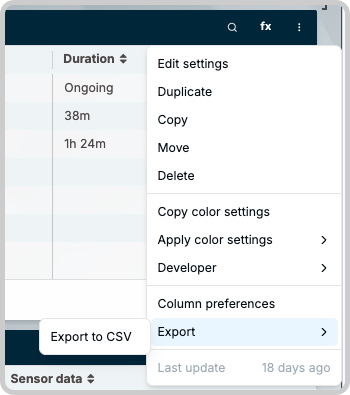
Widgets with a built-in export option:
- Dynamic Table
- Entity Table
- Device List
- User List
- Map
- Line Chart
- Area Chart
- Vertical Column
- Horizontal Bar
- Pie
Widgets not listed above do not provide a built-in export option.
Widget exports generate a CSV file. The Dynamic Table and Device List widgets prompt you to select a CSV delimiter before downloading the file.