Dashboard Overview
A dashboard is where you place your widgets to visualize and interact with data, all in real-time. Dashboards can also be shared with end-users that will access your application using TagoRUN.
All your dashboards are listed on the sidebar of the screen. On the top right you will find the Edit Dashboard menu. From there you will have access to other dashboard functionalities such as rename, share, distribute, duplicate, and delete. Share and distribute apply to Normal and Blueprint dashboards.
Dashboard types include:
- Normal: create a dashboard for pre-selected devices and variables on a widget grid.
- Blueprint: associate tags so one layout scales across many devices and users.
- AI Dashboard: generate a full-page layout from a natural language prompt; refine by chat; Run users view it in TagoRUN (experimental).
- Custom Dashboard (Custom HTML in the create dialog): upload your own full-page HTML shell; run saved TagoSQL queries or call Analysis Endpoints over postMessage; Run users view it in TagoRUN (experimental).
There is a limit of 100 widgets per Normal or Blueprint dashboard. Types that present a full-page layout instead of the widget grid are not subject to that limit.
Building dashboards
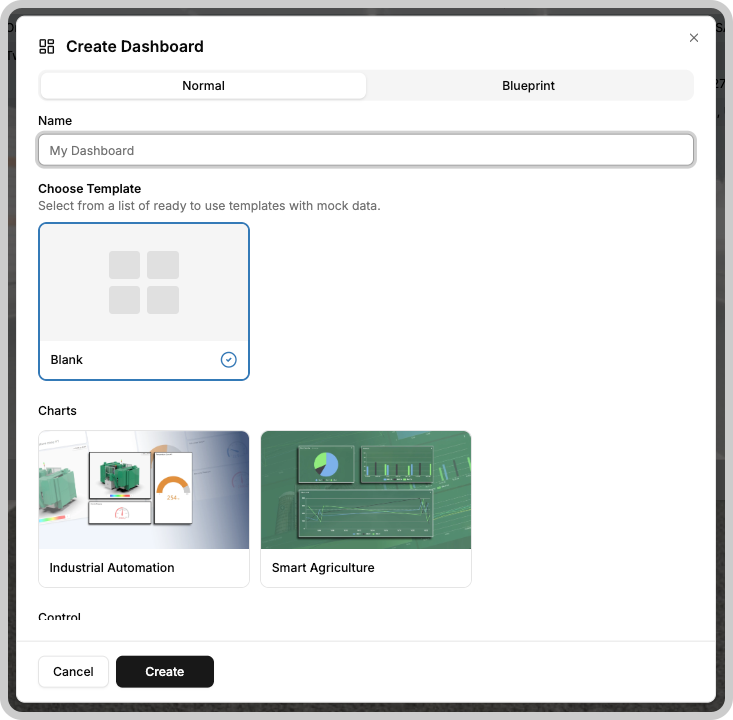
To create a new dashboard, start by clicking the + button on the left side of Admin page. A new window will appear with tabs and options for the dashboard types available to your profile. You can also start from a pre-designed template where templates apply.
Enter a name for your new dashboard and click Save. For Normal and Blueprint dashboards, you can then begin adding Widgets. For AI Dashboard, use the prompt bar to generate the layout. For Custom Dashboard, upload your HTML shell.
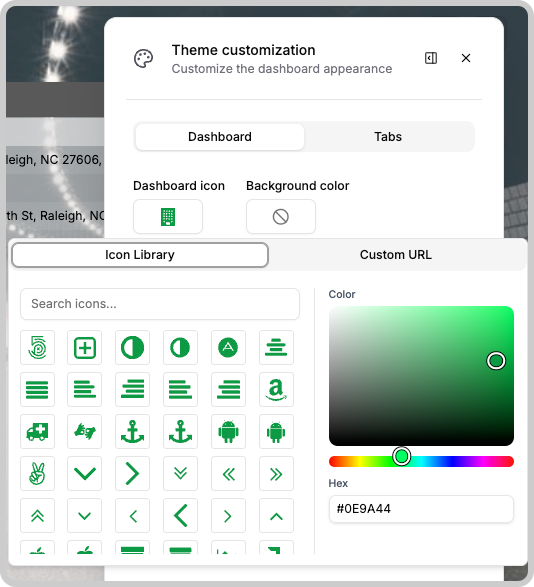
Dashboard Icons
You can add icons to your dashboard, making it look just the way that you want it.
Dashboard Background
You can also edit the background color of the dashboards, or add images and animations. Click on the cog icon to edit the configurations inside the 'General information' tab.
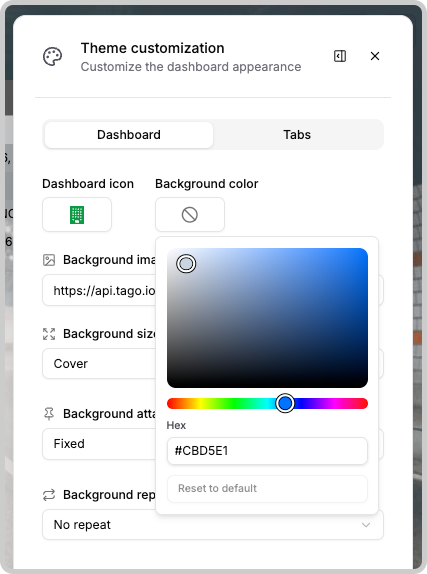
Although video formats are not accepted, you can upload animations using the .gif format as shown below. Images can be uploaded into your Files.
Tip: You have full control of the opacity level for the background and the widgets.
Reordering widgets for mobile app on TagoRUN
When accessing dashboards through the TagoRUN app, widgets appear in the sequence of their creation by default. To modify this arrangement, simply switch your dashboard to Edit mode and click on the small smartphone icon located at right top corner.
To reorder the widgets for the mobile app, just drag them to your preferred position. The adjustments will take effect immediately, although you might need to refresh the dashboard on the mobile app to see the changes.