Dynamic Table Widget
Dynamic tables are tables that populate dynamically as your data arrives while keeping the history of previous values in each row.
Editing the dynamic table
You can customize the widget color, apply formulas to columns, show a time column, enable a control column, and more.
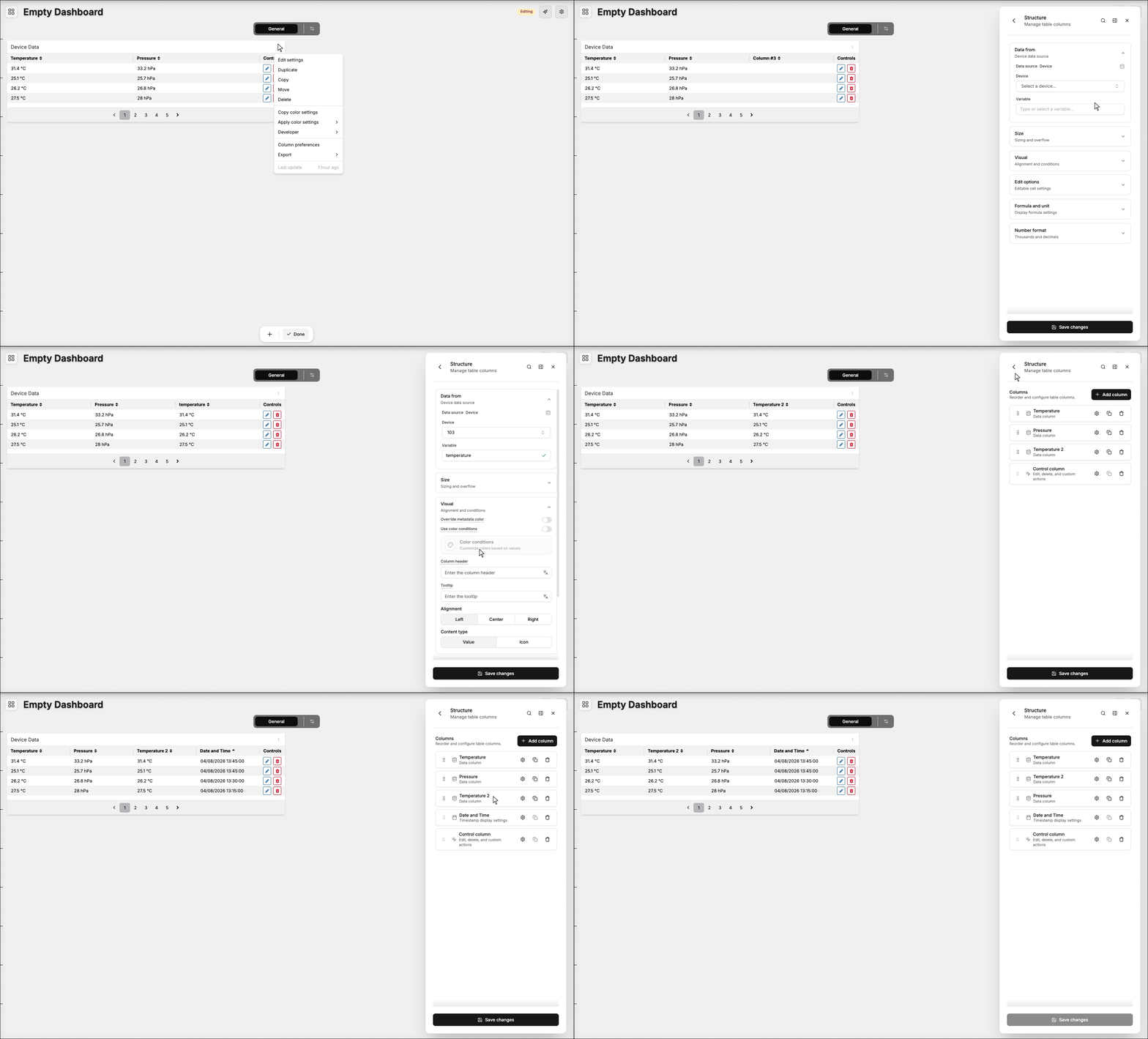
To edit a specific section of this widget, hover over the desired element and click it. A new page will appear on the right side with all the editable options for the selected element.
1. 'Data Sources' Field
Each column has the field Data Sources; this field allows you to set the device and variable that will be used in this widget.
This field is dependent on the type of dashboard you are using; the difference is explained below.
1.1 'Data Sources' for Normal Dashboards
From the option Data Sources on the right menu, select one device from your list of devices and the variable that contains the data.
1.2 'Data Sources' for Blueprint Dashboards
From the option Data Sources on the right menu, add the Blueprint device and input the name of the variable that contains the information.
When using a Blueprint dashboard, the field Variable will suggest a list of variables to be picked using the currently selected blueprint device.
2. Grouping data
The dynamic table lets you group related data from multiple columns in the same row by either groups or time.
The variable's data that has the same time will be grouped in the same row.
3. Data visualization
The dynamic table offers the possibility of customizing each column's data visualization. It is possible to apply Formula, make cell colors change based on conditions, use icons to represent your data, and more.
The color cell can be sent by the variable metadata.
4. Filtering Data
Filtering data can be done by each column or by the whole table. It's customizable on the Widget's edit screen.
5. Editing data
You can allow users to modify a variable's value inside of a table by enabling the edit option located inside the column's configuration.
It is possible to set some columns as required when editing the row value.
Dynamic Table offers a bunch of field types to indicate what kind of value can be submitted in the input once the user modifies it. These types are Text, Password, Number, Dropdown, Dropdown Multiple, Address, Entities and Device (configured by tags).
These field types have the same behavior as the Form's fields.