Per Run User Generation
Experimental. This feature may change or be removed.
Per Run User Generation lets one AI Dashboard serve many TagoRUN users, each with a dashboard of their own. Every Run user you share the dashboard with gets a separate version, built only from the devices that user can access. They build it and change it by talking to the AI Chat in TagoRUN, and you can build it for them so nobody starts on a blank page.
A typical case is an OEM or system integrator with one portal for all of its customers. You create a single dashboard, write the conventions once, and each customer's users get a layout that fits their own equipment.

How it works
Without Per Run User Generation, every Run user sees the layout you generated in Admin, filled with their own data (Access and Limits). With it on:
- Each Run user has their own version. It is separate from yours and from every other user's, and it has its own version history. A user who has no version yet sees an empty dashboard that invites them to open the chat.
- The generator sees only that user's devices. It reads the devices the Run user can access, so it can't name or chart another customer's equipment.
- Your version stays yours. In Admin, Me is the setup you edit with the prompt bar. Run users never see it.
- One set of rules applies to every generation. Rules for the generator carries your naming and layout conventions into every version, whoever starts the generation.
- Three ways to build a user's version. The Run user asks the TagoRUN AI Chat, you prompt on their behalf in Admin, or an Analysis builds it through the API.
Set it up
Follow these steps in order. Most problems come from a missing grant in step 4 or 5.
- Create an AI Dashboard. See Creating an AI Dashboard. You don't need a layout of your own first.
- Turn on Per Run User Generation. Open the dashboard in Admin, open the dashboard menu, and pick Dashboard settings. Turn on the Per Run User generation toggle and save. The toggle only exists on AI Dashboards.
- Write the rules. In the same panel, fill in Rules for the generator with the conventions the generator can't guess from your data. See Rules for the generator.
- Share the dashboard. In Access Management, create a policy whose Target is the Run users. Grant Dashboard with Access on this dashboard, and Device with Dashboard access on the devices it should show. The generator builds each user's version only from the devices they have Dashboard access to.
- Grant the chat. In the same policy or another one for the same users, grant AI with Access, Read dashboards, and Read device data, and Device with AI access on the same devices. Read dashboards lets the chat build the user's version; it needs no Dashboard → AI access for the dashboard the user has open. Read device data and AI access let it look up the devices; without them, it tells the user that no devices are available.
- Turn on the AI Chat for the portal. See Enable and test AI Chat.
- Test with one Run user. Sign in as that user, open the dashboard, and ask the chat for a simple layout. Then grant the policy to a larger audience.
- Give users a starting point (optional). Build each user's first version yourself from the User picker, or for all of them at once with an Analysis.

When you turn the toggle off, Run users go back to seeing your layout read-only, and the TagoRUN chat can no longer change the dashboard. Their versions are not shown while it is off.
What a Run user needs
A Run user can build their dashboard only when every row below is in place for them.

| Requirement | Where | What it does |
|---|---|---|
| AI Chat enabled for the portal | TagoRUN → AI. See AI Chat in TagoRUN | Turns on the chat for the application. |
| Dashboard with Access | Access Management policy targeting the Run user | The dashboard appears in the user's sidebar and opens. |
| AI with Access | Same or another policy targeting the Run user | The user can use the chat. |
| AI with Read dashboards | Same AI permission | On an AI Dashboard with Per Run User Generation, the chat can build and change the user's own version. |
| Device with Dashboard access | Device permission on the devices the dashboard should use | The generator builds from these devices, and the dashboard's queries return data from them. |
| AI with Read device data | Same AI permission | The chat can look up devices to answer questions and to understand requests that name them. |
| Device with AI access | Device permission on the same devices. See AI access on resources | The chat can see these devices. Without both halves, AI with Read device data and this rule, the chat answers that no devices are available. |
Rules for the generator
Rules for the generator is free text, up to 10,000 characters. Every generation on this dashboard follows it: yours in Admin, the ones you run on a user's behalf, the ones an Analysis starts, and the ones Run users start from the chat. The rules save even when Per Run User Generation is off, so you can use them for your own prompts too.
Use the rules for conventions the generator can't guess from your data:
The device name is stored in the device tag key device_name; use it instead of the real name.
Sites are tagged site=<code>. Group charts by site.
Temperatures are in Celsius. Show one decimal place.
The API never returns the rules to Run users, but they are part of the TagoRUN AI Chat's prompt, so a Run user who asks can get the chat to repeat them. Treat them as visible to every Run user who can use the chat on this dashboard. Write naming and tagging conventions there. Never put secrets, tokens, or other customers' names in them.
The chat also follows the TagoRUN AI system prompt of the portal. See Writing a system prompt for TagoRUN AI. Use the system prompt for how the assistant talks about your application, and the generator rules for how this dashboard is built.
Manage each user's dashboard in Admin
With Per Run User Generation on, the dashboard header in Admin shows a User picker.

- Me comes first and is your own setup.
- Below it are the Run users who can open the dashboard, by name and email. Users without a version show a No dashboard yet badge.
- Search filters the list by name or email.
Pick a user to work on their dashboard:
- Preview it. You see the user's version, filled with the data of the devices that user can access. The address bar keeps the selection as
user=<id>. - Prompt on their behalf. The prompt bar now builds or edits only that user's version, under that user's device access. Use it to give users a starting point before they sign in.
- Restore a version. Restore version in the dashboard menu lists the picked user's versions. Restoring changes only that user's dashboard.
You can generate for a user while the AI Chat is still off for the portal. Use this to test your rules on real users' devices before you open the chat to them.
Who appears in the picker
The picker lists the active Run users that an Access Management policy grants Dashboard → Access to this dashboard, whether the policy matches them by ID, by tag, or with an Any target. Inactive users, users with a deny rule on the dashboard, and the Anonymous User do not appear.
What Run users see in TagoRUN
A Run user opening an AI Dashboard with Per Run User Generation sees their own version, built only from their own devices.
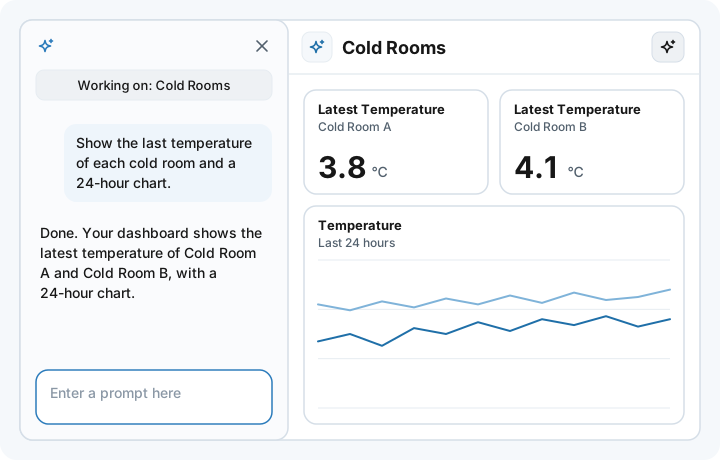
- No version yet. The dashboard shows Describe the dashboard you need and an Open AI chat button.
- The AI button. The AI button in the dashboard header (the AI tab on a phone) opens the AI Chat with the dashboard attached. The chat shows Working on: followed by the dashboard name.
- Questions and changes. Questions such as "What devices can I use?" get answers. Requests for changes rebuild the user's own dashboard, which refreshes in place without a page reload.
- No prompt bar or model picker. The chat runs on the portal's TagoRUN AI model, and Run users never see billing or credits.
- Their own history. The version history lists only the user's own versions, and restoring one works as in Admin.
- One change at a time. A change requested while their dashboard is still generating is refused, and the chat tells the user the dashboard is already generating and to try again when it finishes.
Without the grants in What a Run user needs, or with the AI Chat off for the portal, there is no AI button, and the empty dashboard shows "AI isn't available. This dashboard is built with the AI chat. Ask your administrator for access."
Build dashboards with an Analysis
An Analysis can build a first version for every user at once, so new users open a ready dashboard instead of a blank one. The Analysis lists the Run users of the dashboard, then generates a version for each one that has none.
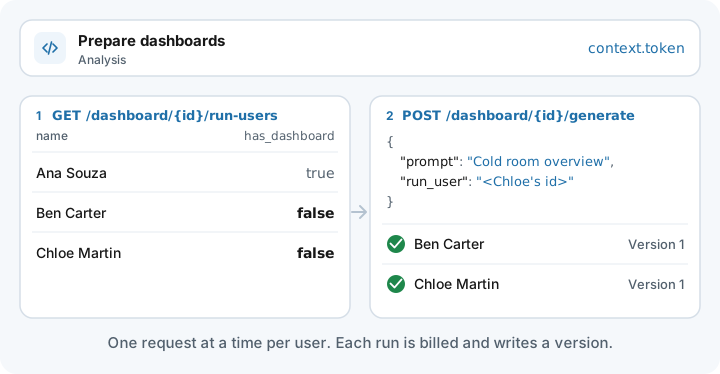
- Call List Run Users of an AI Dashboard. Each row has the user's
id,name,email, andhas_dashboard. - For each user with
has_dashboard: false, call Generate AI Dashboard with apromptand the user's ID asrun_user. - Wait for each request to finish before you send the next one for the same user. A generation usually takes 15 to 60 seconds.
Don't retry a generation blindly after a timeout. Each run is billed and can save a version, so check has_dashboard again first.
Use the token the Analysis receives when it runs, context.token, as is. It works on these routes when the Analysis's Access Management policy grants the matching Dashboard rule on the dashboard (see Dashboards for analysis Targets):
| Request | Dashboard rule the Analysis needs |
|---|---|
Create Dashboard with "type": "ai" | Create |
Edit Dashboard (per_user, ai_instructions) | Edit |
| Generate AI Dashboard | Edit |
| List Run Users of an AI Dashboard | Access |
Without the rule, the request returns 401. Run user tokens can't call these routes; Run users build their dashboard through the chat.
Usage and limits
- Run users' generations on the free model count against the profile's TagoRUN AI requests allowance, separate from your own requests. A chat turn that changes the dashboard counts twice: once for the chat turn and once for the generation. A question counts once. See TagoAI Service.
- Generations you or an Analysis run for a user count as your own AI requests, the same as any generation in Admin.
- Concurrency. One generation runs at a time on each user's version, and at most three at once per profile. Extra requests are refused until one finishes.
- Allowance used up. When the portal has used its allowance, the Run user sees "Couldn't send your message. Ask your administrator for help." Run users never see the limit itself.
Access changes and deletion
- Removing a device grant. The user's next data load no longer returns that device's data. Device names already written in widget titles or text stay until the dashboard is generated again.
- Removing the dashboard grant. The user can no longer open, load, or generate the dashboard, and they leave the User picker.
- Deleting a Run user. Their versions of every dashboard are deleted with them.
- Deleting the dashboard. Every user's version is deleted with it.
Troubleshooting
| Symptom | Likely cause and fix |
|---|---|
| No AI button; "AI isn't available" | The AI Chat is off for the portal, or the user lacks AI with Access and Read dashboards. See What a Run user needs. |
| The chat says no devices are available | The user lacks AI with Read device data, or the devices lack AI access for this user. Grant both on the devices the dashboard should use. |
| Widgets show No data | The devices lack Dashboard access for this user, or the generator named a variable that doesn't exist. Grant access, or ask the chat to fix the widget. |
| A user is missing from the User picker | The user is inactive, has no Dashboard → Access to this dashboard, or a policy denies it. |
| The chat says the dashboard is already generating | A generation for this user is still running. Wait for it to finish. |
| "Couldn't send your message. Ask your administrator for help." | The portal used its TagoRUN AI requests allowance. See Usage and limits. |
| Users see your layout, and the chat can't change it | Per Run User Generation is off for the dashboard. Turn it on in Dashboard settings. |
API reference
- Create Dashboard: create an AI Dashboard with
per_userandai_instructions. - Edit Dashboard: turn Per Run User Generation on or off and change the rules.
- Dashboard Information: read
per_userandai_instructions. - Generate AI Dashboard: build or edit your setup or a Run user's version.
- List Run Users of an AI Dashboard: find the users who can open the dashboard and whether they have a version.