Blueprint Dashboard
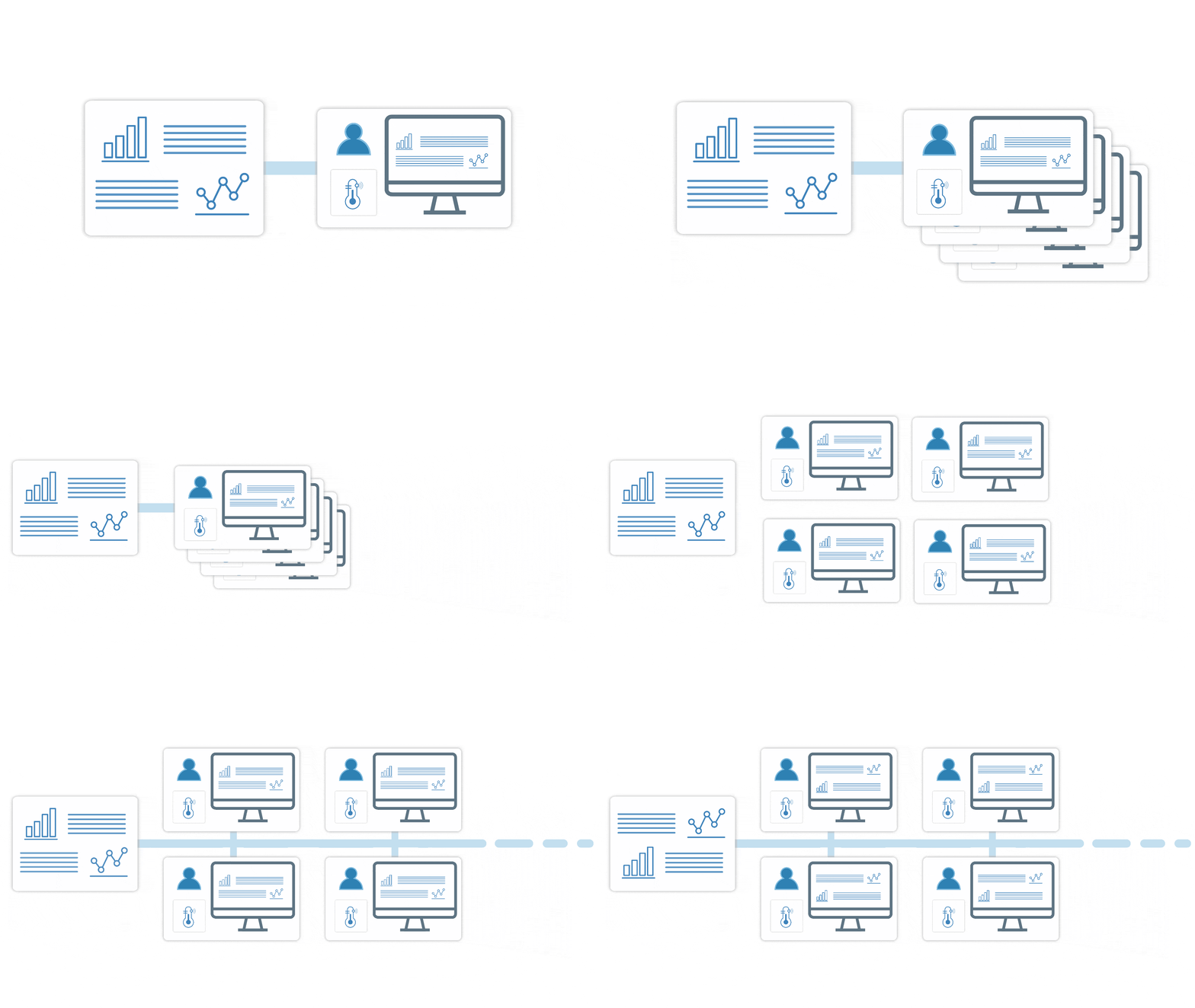
Blueprint is a type of Dashboard that links widgets to devices at runtime. Instead of building one dashboard per device or user, you build one reusable layout and let each blueprint slot resolve to a real device when the dashboard loads.
The same dashboard then scales across many devices, sites, or customers. Blueprint does not control access on its own: which users can open a shared dashboard, and which devices and users they can reach through it, is governed by Access Management.
Before you start
Before creating a Blueprint Dashboard, make sure you have:
- Devices already created in TagoIO.
- Tags applied to the devices you want each slot to show.
- The same variable names across devices that share a slot.
- Access Management policies set up so end users can access the dashboard and Entities, Devices, or Users it displays.
Variable names matter. If a widget reads the pressure variable, every device the slot can resolve to should send data under pressure. A device that uses pump_pressure instead leaves that widget blank when it is selected. This is one of the most common reasons a dashboard works for one device but not another.
Concepts
Blueprint slots
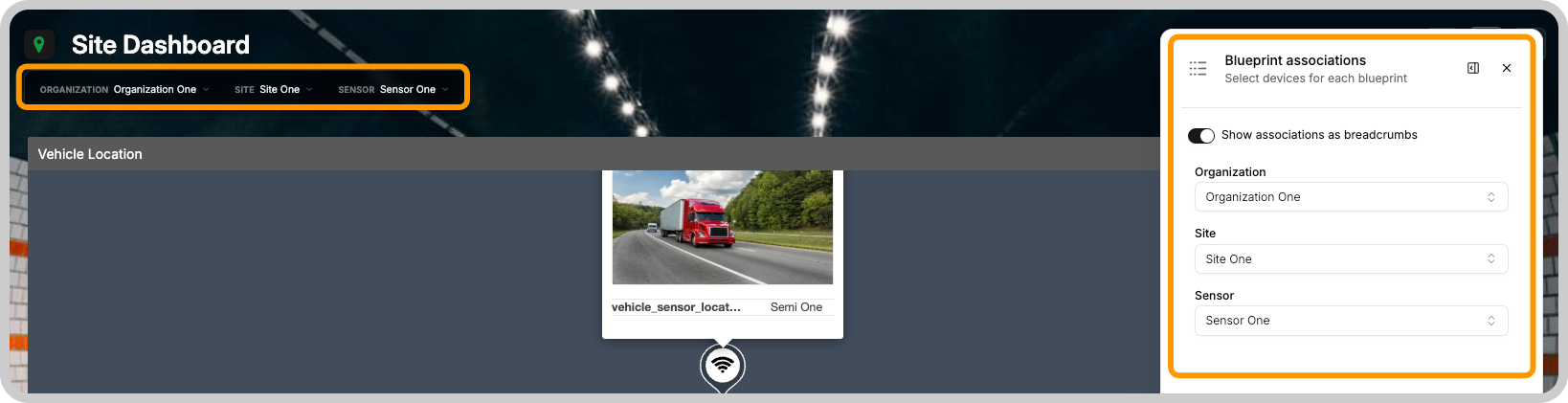
A blueprint slot is a placeholder data source in the dashboard. Instead of pointing a widget at one fixed device, you point it at a slot. The slot resolves to whichever device the user picks from a dropdown at the top of the dashboard, and changing that selection reloads every widget bound to the slot.
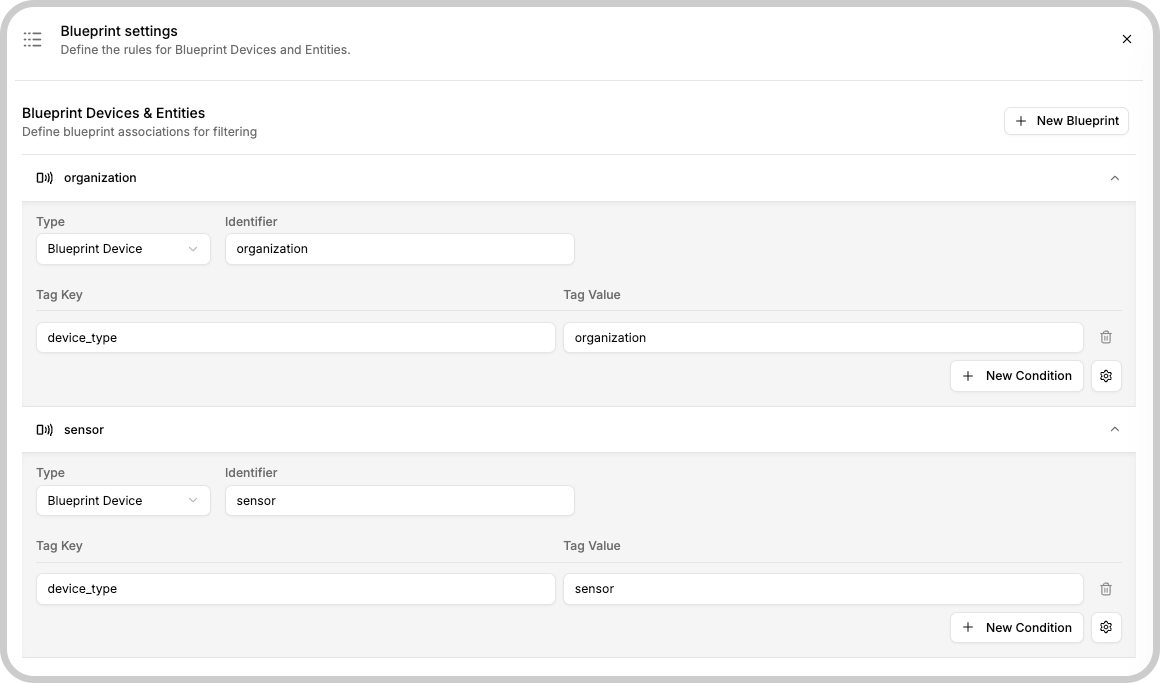
Each slot has an identifier (the name shown in the widget data-source picker) and a tag filter (the tag key and value that decide which devices appear in its dropdown). You can add up to 20 slots per dashboard.
Blueprint Devices and Entities
Blueprint Devices use devices as their data source. Blueprint Entities work the same way but use Entities instead. Not all widgets support entities: check the widget's data-source picker to see if it appears as an option.
Data scope across slots
Each slot keeps its own selection. When the user changes the device in one slot, TagoIO reloads only the widgets and series bound to that slot. A widget bound to the Pump slot never reads data from the device selected in the Tank slot. If a widget supports more than one data source, each series follows the slot assigned to it.
By default, slots resolve independently: the device picked in one slot does not change the options in another. Filter conditions change that, as covered next.
Filter conditions
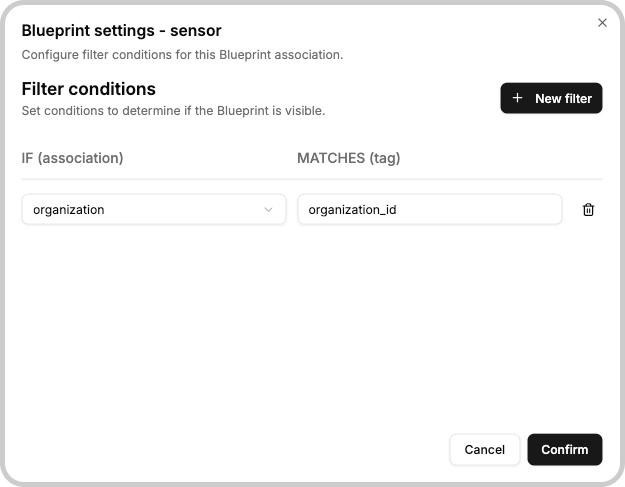
Filter conditions link one slot's options to the device selected in another slot. In Blueprint Settings, open a slot's menu (the gear icon) and choose Filter conditions to open the configuration modal.
Each condition reads as IF (association) ... MATCHES (tag) ...: the slot only shows devices whose tag value matches the device selected in the association you point it at. Tag both sides with a shared key, and one dropdown drives the other instead of resolving on its own.
For example, say a dashboard has two slots, both filtered by the device_type tag: an organization slot (device_type=organization) and a sensor slot (device_type=sensor). You want the sensor list to depend on the organization, so that picking an organization shows only its sensors.
Give each organization device an organization_id tag, and tag every sensor with the organization_id of the organization it belongs to. Then open the sensor slot's gear menu, choose Filter conditions, and add a filter: IF (association) organization MATCHES (tag) organization_id.
Now selecting an organization filters the sensor dropdown to the sensors whose organization_id matches it. Sensors from other organizations stay hidden until their organization is selected.
Set up a Blueprint Dashboard
This walkthrough builds one dashboard for a water treatment facility: pump data in one slot, tank data in another, both selectable at runtime.
1. Tag your devices
Slots filter devices by tag key and value, so decide on a tag scheme first. This example uses four devices:
| Device | Variables | Tags |
|---|---|---|
| Main Pump | pressure, flow_rate | type=pump |
| Backup Pump | pressure, flow_rate | type=pump |
| Tank 1 | level, temperature | type=tank |
| Tank 2 | level, temperature | type=tank |
Apply the tags under Devices > (select device) > Tags.
2. Create the blueprint slots
Open the dashboard's edit page and go to Blueprint Settings. For more on this screen, see Blueprint Devices and Entities. Add one slot for each device type:
| Identifier | Tag Key | Tag Value |
|---|---|---|
| Pump | type | pump |
| Tank | type | tank |
The identifier is the name shown in the widget data-source picker, so pick something that makes the slot's role clear.
3. Bind widgets to slots
Open a widget's settings and go to its data source. The dropdown lists your blueprint identifiers (Pump, Tank). Assign each widget to the slot that holds its data:
| Widget | Slot | Variable |
|---|---|---|
| Gauge (Pump Pressure) | Pump | pressure |
| Line chart (Flow Rate) | Pump | flow_rate |
| Gauge (Tank Level) | Tank | level |
| Dial (Water Temp) | Tank | temperature |
Widgets bound to Pump show data from the selected pump, and widgets bound to Tank show data from the selected tank.
4. Test the dashboard
Open the dashboard and switch the Pump dropdown between Main Pump and Backup Pump, then switch the Tank dropdown between Tank 1 and Tank 2. Each switch should reload only the widgets bound to that slot.
Troubleshooting
The device selector is empty
Check that the devices carry the tag the slot filters on. The tag key and value must match the slot configuration exactly.
A widget shows no data after selecting a device
Check that the selected device sends the variable the widget reads. Devices that share a slot should use the same variable names.
A user sees devices they should not access
Slots decide which devices can appear based on tags; they do not grant access. Review the device and user tags, along with the Access Management policies that match users to the devices they are allowed to see.
The wrong widgets update when I change a slot
Open each widget's settings and confirm it is bound to the right blueprint identifier.
A filter condition does not narrow the dependent dropdown
Check that both slots' devices carry the shared tag, and that the filter condition points at the right association and tag. If the matched tag value differs between the two devices, they will not link.