Generating and Refining
Experimental. This feature may change or be removed.
Generation turns a natural language prompt into a new dashboard layout. Refinement uses the same prompt bar: you ask for changes, and the model produces an updated layout.
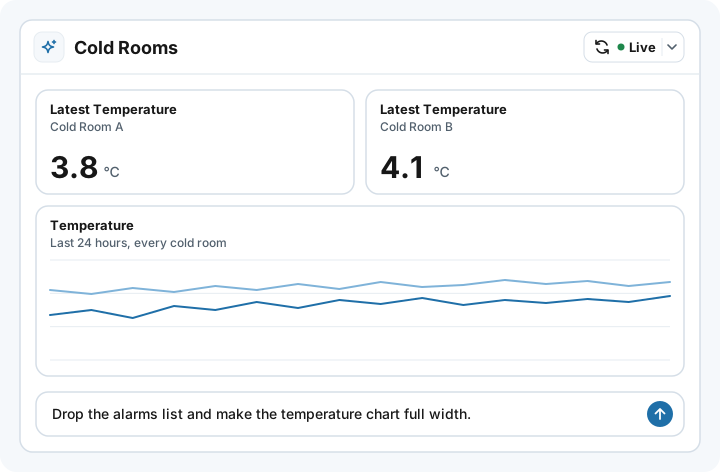
Prompt bar
The prompt bar sits on the AI Dashboard view in Admin. Use it to:
- Generate a first version (or a full rewrite) of the layout.
- Refine layout, charts, labels, colors, or which data appears.
Write what you want in plain language. Good prompts name devices or variables, the kind of charts, and any layout constraints:
Fleet overview for devices tagged type=sensor: last temperature and battery
as cards, a 24h line chart of temperature, and a table of devices with
battery below 20%. Dark theme, compact header.
Vague prompts still run, but the model has less to anchor on. Prefer concrete variables, time ranges, and chart types.
What generation does
When you generate or refine from the prompt bar:
- Your prompt (and recent session conversation context) goes to the configured AI path.
- A new layout is stored on the dashboard.
- Admin shows the new layout and loads data so charts fill in.
Only generate replaces the layout. Refreshing data alone leaves the design in place. See Data and Refresh.
Refining
After the first layout exists, keep using the prompt bar to iterate:
- "Make the temperature chart full width."
- "Add humidity next to temperature on the same line chart."
- "Use a lighter background and larger titles."
- "Drop the map; keep the table and KPIs only."
Each successful refine replaces the previous layout. Data reloads for the new design.
Review the result the way you would review a teammate's layout change. Generated output can be wrong for your data shape; correct with another prompt, or start over if the layout is far off.
Conversation history
The generate/refine chat is session-only:
- History lives in the browser for the current Admin session while you work on that dashboard.
- It is not a full server-side chat store (unlike the main TagoAI assistant history).
- Closing the tab, signing out, or starting a fresh session drops that conversation context.
- The saved layout on the dashboard remains; only the chat thread is ephemeral.
If you need a durable record of prompts, copy them out yourself before the session ends.
Restore an earlier version
Each generate or refine that changes the layout saves a version of it. One that changes nothing saves no version, but still counts as a generation. To go back to one:
- Open the dashboard menu and pick Restore version.
- Pick a version from the list.
- Click Restore.
Restoring replaces the current layout with the saved one. On a dashboard with Per Run User Generation, the list and the restore follow the user picked in the User picker.
Generate from the API
Generate AI Dashboard runs the same generation as the prompt bar, from a profile token or an Analysis. Send the prompt, and optionally history with earlier turns so the generator can follow up on them. The API keeps no conversation of its own, so send the turns you want it to see on every call.
When generation fails or is blocked
Generation depends on TagoAI / profile AI settings. Common blocks:
| Situation | What to do |
|---|---|
| AI disabled on the profile | Enable under Profile Settings → Services → AI Provider. |
| Out of AI credits on a paid model | Buy credits, raise the profile spend cap, or change the dashboard model to the free one. The model used for AI Dashboards is part of the profile's AI settings, not a per-dashboard or per-prompt choice, so switching means changing the model selected on the profile and it applies to every AI Dashboard there. See AI Credits. |
| Monthly free model allowance reached | Wait for the next monthly cycle, or set the profile's dashboard model to a paid one, billed with credits or through your own provider. The free model always counts against the allowance, even on a profile with its own provider. See TagoAI Service. |
| Provider error or timeout | Retry; if it persists, check provider keys and status. |
| Feature unavailable | AI Dashboard may be experimental or region-gated; see Access and Limits. |
Failed generates leave the previous layout (if any) in place until a successful generate completes.
Tips
- Start with one clear layout goal; refine in small steps rather than rewriting everything in one long prompt.
- Name variables and tags the way they exist on your devices so the generated layout can match real data.
- After a big structural change, press the refresh button to confirm numbers still line up.
- Treat AI Dashboard as experimental: prompts and output quality will evolve.