AI Chat in TagoRUN
AI Chat lets TagoRUN users ask questions about your application and interact with the resources you authorize. You configure the assistant's model, application instructions, suggested questions, and permissions.
Enabling AI Chat does not grant access to your devices or other resources. A user needs permission to use the chat, and the assistant needs additional permissions before it can retrieve application data. The chat is read-only: the assistant can look things up and summarize, and it cannot create, change, or delete anything.
Before you start
Prepare:
- A TagoRUN application and a RUN user for testing.
- Access to the application's TagoRUN settings, profile settings, and Access Management.
- AI enabled for the profile. See TagoAI.
- A test device with known data if you want to verify device access.
Start with a test user before granting AI access to a larger audience.
Choose the TagoRUN model
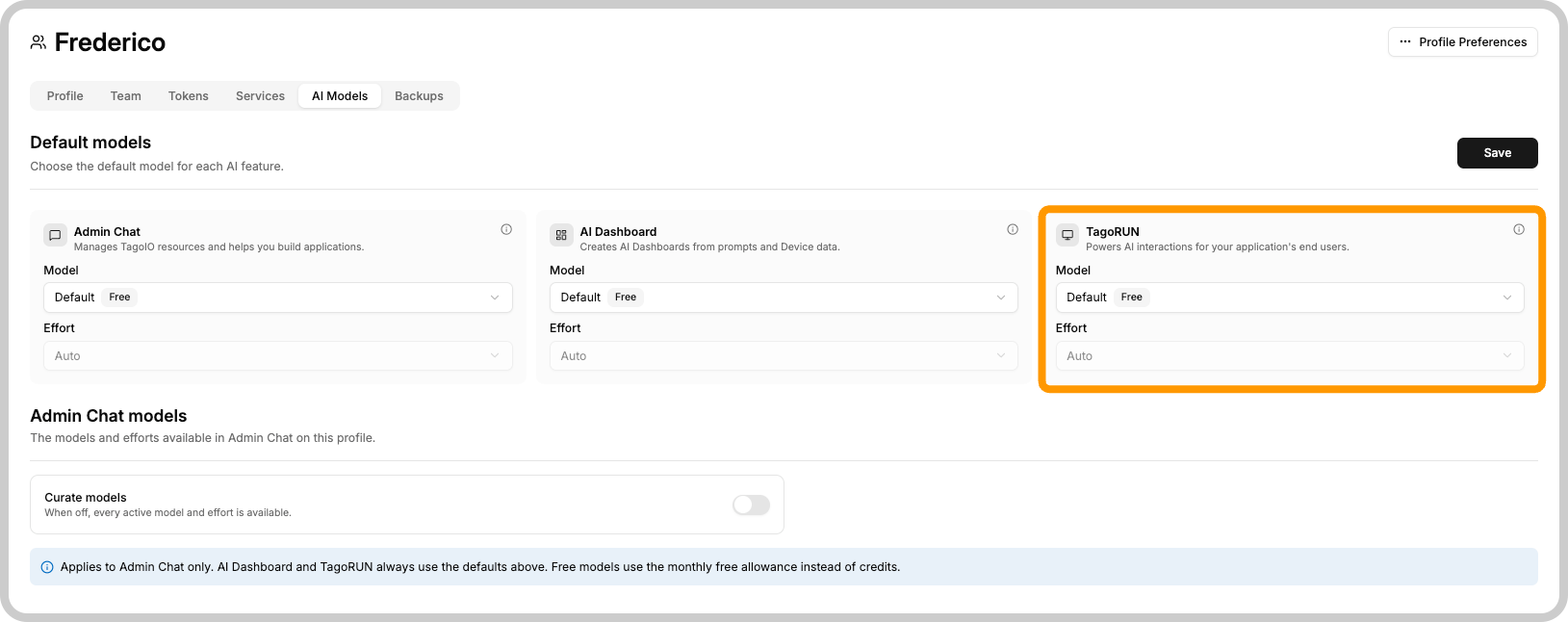
- Open Profile Settings → AI models.
- Under Default models, locate TagoRUN.
- Select a Model.
- Select an Effort level supported by that model.
- Click Save.
This selection applies to chats through the profile's TagoRUN application. RUN users do not select their own model.
When no model is selected, chats run on the free model. The free model has its own monthly allowance of TagoRUN AI requests, separate from the allowance used by the Admin chat, so portal traffic never consumes your own requests. The numbers per plan are in TagoAI Service.
Model selection also determines how requests are billed. Review AI models and pricing before making the assistant available to users.
Give the assistant application context
- Open TagoRUN → AI.
- In System Prompt, describe your application and how the assistant should help its users.
- Click Save beside the system prompt.
Include information such as:
- What the application does.
- What device names, variables, and statuses mean.
- How to explain readings and answer common questions.
- Relevant instructions from your application documentation.
- How to respond when information is missing or an operation is unavailable.
For example, explain whether battery_level refers to a tracking device's battery or a vehicle's battery. The assistant should not have to infer application-specific meanings from variable names.
The system prompt guides responses. It does not grant access to resources. See Writing a system prompt for TagoRUN AI.
Grant permission to use AI Chat
Create a policy for the users who should have access.
- Open Access Management and click Add Policy.
- Enter a descriptive policy name.
- Under Targets, select Run User.
- For the initial test, match your test user by ID.
- Add an Allow permission for AI.
- Under WITH RULES, select Access.
- Save the policy.
The Access rule allows the targeted user to use AI Chat, and it is what makes the chat appear in the portal for that user. By itself, it does not authorize the assistant to read device data.
For a larger audience, use the appropriate target selection described in Defining Targets.
Allow access to application data
Choose the access approach that fits the information the assistant needs:
| Approach | Use it when |
|---|---|
| Direct resource access | The assistant may access the selected resources through the allowed AI actions. |
| A saved TagoSQL query | You need to control the variables, rows, or fields returned to the assistant. |
Example: allow the assistant to read a device
For direct device reading, configure both the AI action and the device permission.
In the policy for your test user:
- In the AI permission, keep Access selected and add Read device data.
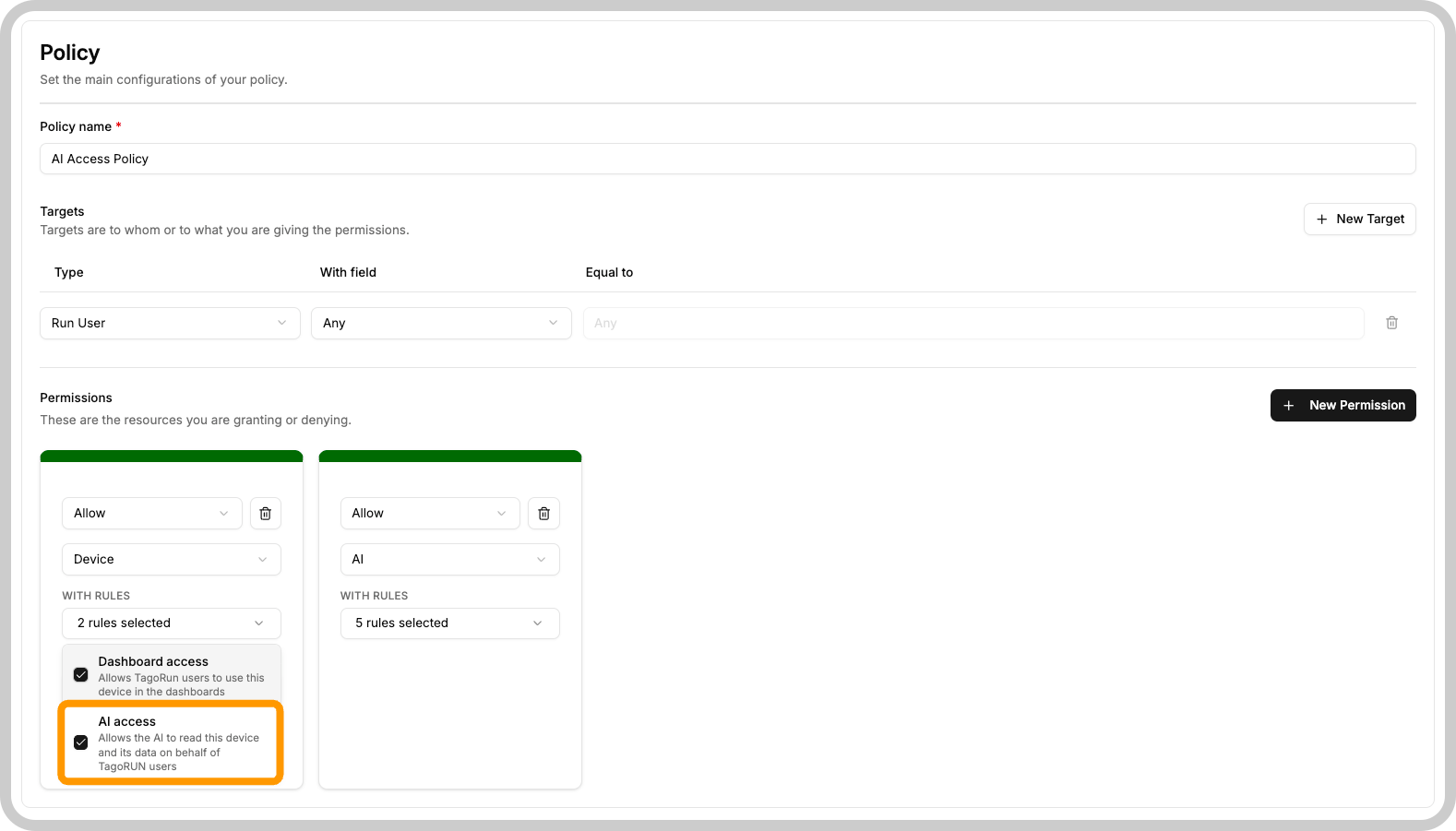
- Add another Allow permission for Device.
- Select the device rule AI access.
- Restrict the permission to the test device.
- Save the policy.
The two permissions serve different purposes:
| Permission | Purpose |
|---|---|
| AI → Read device data | Allows the assistant to perform device-reading operations. |
| Device → AI access | Makes the selected device available to the assistant for that user. |
The same pattern applies to entities (Read entity data with Entity → AI access), dashboards (Read dashboards with Dashboard → AI access), and users (Read users with Run User → AI access).
The device's Dashboard access rule is separate from AI access. Making a device available in a dashboard does not make it available to AI.
If the assistant should see only selected variables or fields, use a restricted TagoSQL query instead of also granting broad direct-device AI access. Query restrictions do not narrow a separate direct-device permission.
See Restrict AI results with a saved TagoSQL query for queries that return different results for each RUN user.
Add suggested questions
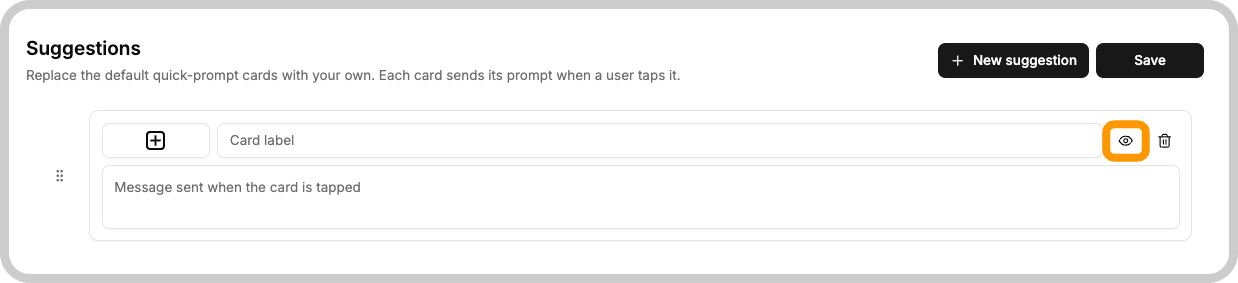
Suggestions give users a starting point for a conversation. Tapping one sends its prompt as the first message of a new chat.
Configure them under TagoRUN → AI → Suggestions, separately from the profile's model settings.
- Add a suggestion.
- Choose an icon and enter a short label.
- Enter the question or instruction associated with the suggestion.
- Configure visibility conditions if the suggestion is intended for a specific audience.
- Save the suggestions.
For example:
| Label | Suggested question |
|---|---|
| Battery status | Show the latest available battery readings for my devices. |
| Understanding readings | What does battery_level mean in this application? |
Only offer data-related suggestions to audiences whose policies support the requested operation.
Show suggestions to selected users
Use Visibility Conditions to match user tags.
For example, a condition with tag key user_level and tag value supervisor can target a suggestion to that audience. These are example tag values, not built-in roles.
Add the condition, click Confirm, and save the suggestions. A suggestion with several conditions is shown when at least one of them matches a tag on the user.
Visibility conditions control which suggestions appear. They do not grant permission to perform the suggested action. Configure authorization through Access Management even when a suggestion is hidden from other users.
Enable and test AI Chat
- Open TagoRUN → AI and enable AI Chat.
- Sign in to the TagoRUN application as your test user.
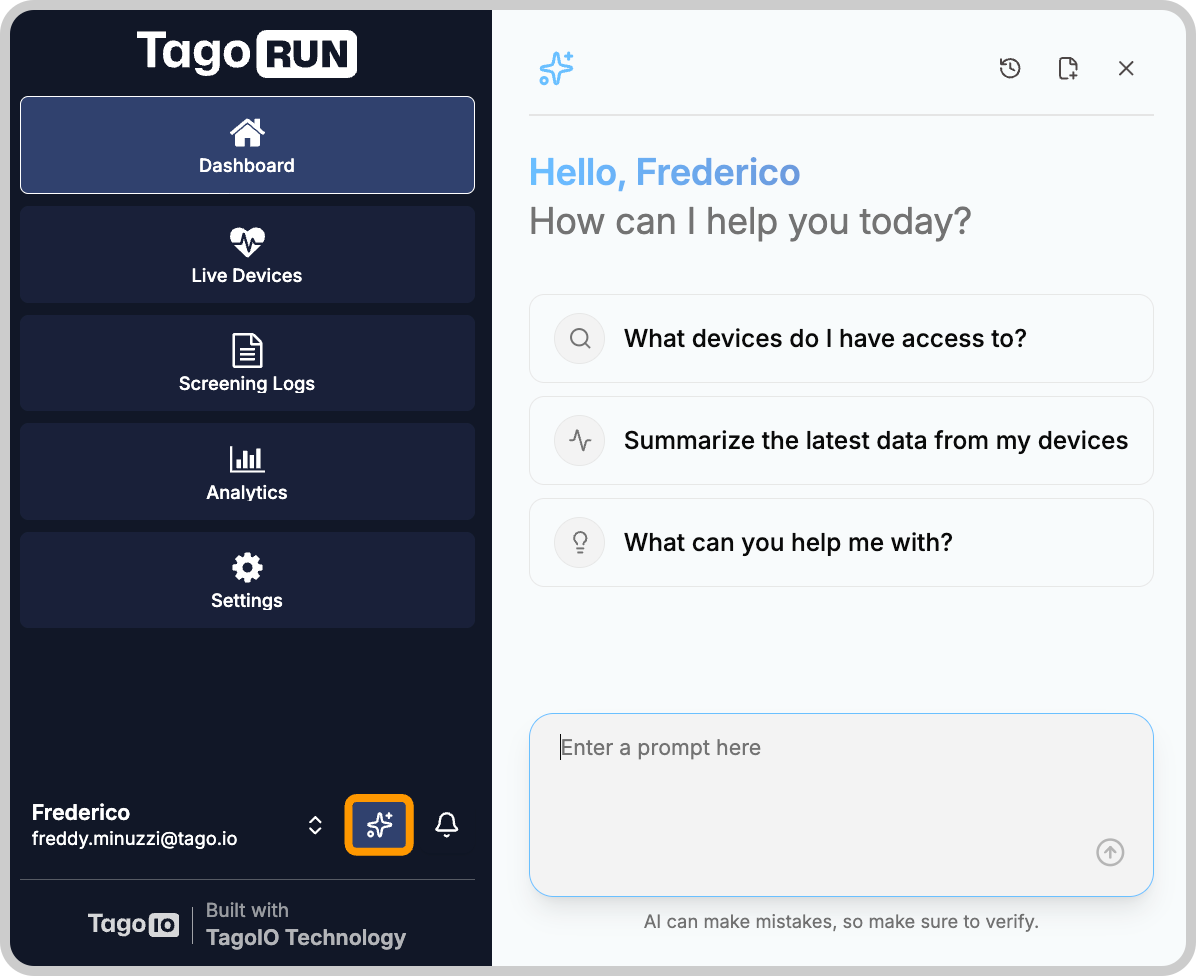
- Select the star-shaped AI icon in the sidebar to open the chat.
- Ask a question covered by your system prompt.
- If you configured device access, request a reading from the test device.
Settings take effect on the next message. No deployment step is needed, and users do not need to sign out.
Check both allowed and restricted requests:
| Test | What to verify |
|---|---|
| Ask about an application term explained in the system prompt. | The answer matches your documentation. |
| Request data from an authorized device. | The answer matches the stored reading, including its unit and timestamp. |
| Request data from a device without AI access. | The assistant does not retrieve that device's data. |
| Sign in as a user outside a suggestion's visibility condition. | The suggestion is not displayed. |
Use a RUN user for these tests rather than relying only on an administrator's view.
Troubleshooting
| Symptom | What to check |
|---|---|
| The user cannot access AI Chat. | Check that AI Chat is enabled, the user is signed in and not anonymous, and an applicable policy grants AI → Access. |
| Chat works, but device data is unavailable. | Check AI → Read device data, Device → AI access, and the policy's user and device selections. |
| A suggestion is missing. | Check its visibility conditions against the user's tags. |
| The assistant misunderstands application terms. | Add the missing definitions or examples to the system prompt. |
| Requests are refused regardless of the question. | The error code says why: RA07 means the profile used its monthly TagoRUN AI requests on the free model; RA05 means AI Credits or the spend cap block the request. See TagoAI Features. |