Dashboard Icons
You can customize the appearance of your dashboard by adding icons. Icons are displayed on the left side of each dashboard item. Colors are fully customizable, and there are more than 100 free icons available.
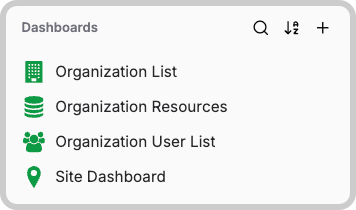
Adding an icon to a dashboard
To add or change a dashboard icon:
- Open the dashboard you want to edit.
- Click the edit menu (the gear icon on the top right corner of the dashboard).
- Select Customize Theme.
- In the Theme Customization tab, click on the Dashboard icon field.
- Choose an icon from the list.
- To set its color, click the square button next to the icon; a color palette will appear for you to pick a color.
Notes
- Icons appear on the left side of the dashboard item.
- Icon colors are completely customizable.
- Over 100 free icons are available for use.
Something missing from this page?