TagoAI Chat
Use TagoAI Chat to ask questions about your TagoIO resources, investigate problems, and create or edit resources from the Admin. Before sending a message, choose the model and the permission mode appropriate for the task.
This page covers the chat in the Admin. For the assistant your portal users see, read AI Chat in TagoRUN.
Starting a chat
Open TagoAI from the star icon in the sidebar, or from the top bar of the Analysis and Dashboards pages. You can start a new chat at any time using the New Chat button.
Each chat keeps its own history, so you can split unrelated tasks into separate conversations and come back to them later.
Choose a model
The selected model determines the capabilities and billing path used by the chat:
- The free model uses the profile's monthly free model allowance.
- A TagoIO catalog model uses AI Credits.
- A model from a connected provider is billed by that provider.
Some models also let you choose a reasoning effort. Higher levels can improve results on complex tasks but can increase response time and usage.
New chats start with the profile's configured default chat model. You can select another model if it is available in the profile's chat model menu.
Page context
When you open TagoAI from a supported Admin page, it receives context about the resource currently open. For example:
- From a dashboard, it can identify the dashboard you are viewing.
- From an Analysis page, it can inspect the script currently open.
This lets you ask questions such as "why is this widget empty?" or "refactor this function to handle missing payloads" without manually identifying the resource.
Expanding and retracting the panel
The chat panel sits on the right side of the Admin. Use the expand control in the top-right corner of the panel to give the chat more room, or collapse it when you need the full screen for your work.
Chat history
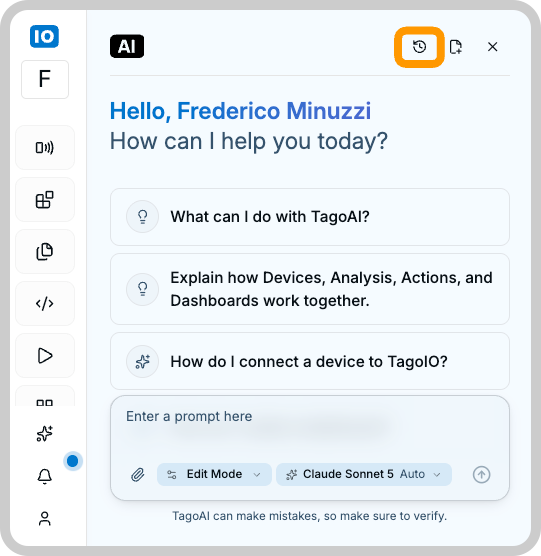
TagoAI keeps your previous chats so you can revisit what you asked before. The history panel groups chats by recency and lets you search across them.
Chat history is capped at 20 chats per profile. When you reach the limit, the oldest chat is deleted first as new ones are created. If you want to preserve a conversation long-term, copy the relevant parts out before it rolls off.
Modes
TagoAI has three modes that control what it is allowed to do on your platform. It opens in Edit Mode. You can switch modes from the bottom of the chat panel before sending a message.
In Edit Mode and Full Access, TagoAI can apply changes without asking you to confirm each action. Use Read Only first when you want to review the proposed approach before allowing changes.
Read Only
Read Only mode only fetches information. TagoAI can list your devices, inspect dashboards, review Analysis scripts, and read data, but it will not create or change anything.
Use Read Only when you are exploring, asking questions, or want to be sure the assistant will not touch your resources.
Edit Mode
Edit Mode allows TagoAI to edit existing resources and create new ones. It can draft an Analysis script, build a dashboard, register a device, or update an Action. Each action it takes appears in the conversation.
Edit Mode does not delete anything. It is the recommended mode for most day-to-day work.
Full Access
Full Access adds deletion to what Edit Mode already allows. TagoAI can remove devices, dashboards, analyses, and other resources as part of completing a task.
Full Access can delete resources in your profile. Deletions in TagoIO are not recoverable from the Admin, so only use Full Access when you understand what you are asking for and have a recent backup if the data matters.
Tips for better results
- Be specific about the device, dashboard, or analysis you want to act on. Names and IDs help.
- Use Read Only to ask for a proposed plan. Switch to Edit Mode only after you have reviewed the plan.
- Keep one task per chat so the history stays useful when you come back.