Personal AI Dashboards for Run users
A personal dashboard is a Run user's own version of an AI Dashboard's main dashboard, the one you generate in Admin. It lets each user shape the dashboard around their own devices. A Run user has at most one per AI Dashboard, with its own version history. Changes to it never reach the main dashboard or other users, and only that user and you see it. This page covers how one is created, the Personalized dashboards setting, and how to set up, manage, and reset them.
How a personal dashboard is created
- The Run user prompts in TagoRUN. A Run user with AI dashboard generation on the dashboard gets a prompt bar. Their first prompt creates the personal dashboard. The AI Chat in TagoRUN does the same, and so does Generate an AI Dashboard as a Run User from code.
- You build it in Admin. Pick the user in the User picker and prompt on their behalf, ask the TagoAI Chat, or call Generate AI Dashboard with
run_user, from an Analysis for example. This works for any Run user with Access to the dashboard, including users who only view, so you can prepare a dashboard before the user signs in.
A Run user without AI dashboard generation only views. The permissions are in Permissions for Run users.
Once a user has a personal dashboard, they see it instead of the main dashboard:
- Data comes only from the devices the user has Dashboard access to. When the first prompt edits the main dashboard, text that carries over can still name its devices.
- Later changes to the main dashboard do not reach it. Reset it to pick them up.
- Turning the Personalized dashboards setting on or off never hides it.
Personalized dashboards setting
Personalized dashboards is a toggle in Dashboard settings, and the per_user field in the API. It sets where a Run user starts when they have no personal dashboard yet. It does not decide who can prompt: that is AI dashboard generation, with the toggle on or off.

| In TagoRUN | Personalized dashboards off | Personalized dashboards on |
|---|---|---|
| A Run user with no personal dashboard sees | The main dashboard as you generated it | A dashboard of their own: the one you built for them, or an empty one |
| The first prompt from a user with AI dashboard generation | Edits the main dashboard into their personal dashboard. The generator is told which of its devices the user can't access, and swaps each for the user's matching device or removes the widget | Builds their personal dashboard from scratch, from the user's devices |
| A user who can't prompt and has no personal dashboard | Sees the main dashboard | "Your dashboard isn't ready yet. Your administrator hasn't built this dashboard for you yet." |
| Run users see the main dashboard | Until they have a personal dashboard | Never |
Turn it on when Run users can't access the main dashboard's devices
The main dashboard is generated from specific devices. When Run users belong to different customers, as with an OEM or system integrator who runs one portal for many customers, each user can access only their own devices. With the toggle off, they open the main dashboard and see empty widgets, with titles and text that can name the devices it was generated from. With it on, they never see the main dashboard. You build each user's dashboard from their devices, or leave it empty for the user to prompt. The main dashboard becomes your workspace in Admin for trying prompts and rules.

Leave it off when Run users can access the main dashboard's devices
One customer whose staff share the same equipment is the usual case. Everyone sees the main dashboard with their own data, and users with AI dashboard generation adjust it for themselves.
A user who can't access those devices can still prompt with the toggle off, and the first prompt swaps in their devices. Until they prompt, they see empty widgets, and every user has to prompt before getting any data. To prepare those dashboards yourself, turn the toggle on.
What a Run user sees in TagoRUN
A user with a personal dashboard sees it, whatever the toggle. A dashboard that was never generated shows "This dashboard has no content yet". A user who can prompt gets:
- Prompt bar. It works like the one in Admin, without the model picker. See Generating AI Dashboards with Prompts.
- AI button. The AI button in the dashboard header (the AI tab on a phone) opens the AI Chat beside the dashboard and hides the prompt bar. The chat shows Working on: followed by the dashboard name and suggests a few first prompts. It can change the personal dashboard, undo a change, and start over. See Change an AI Dashboard from the chat.
- Restore version. In the dashboard menu. It lists only the user's own versions, with who made each one: the user or the administrator.
- Reset to the original. In the dashboard menu, once the user has a personal dashboard. See Reset a personal dashboard.
A user who only views gets no prompt bar and no AI button.
With Personalized dashboards on, a user who can prompt starts from an empty dashboard:
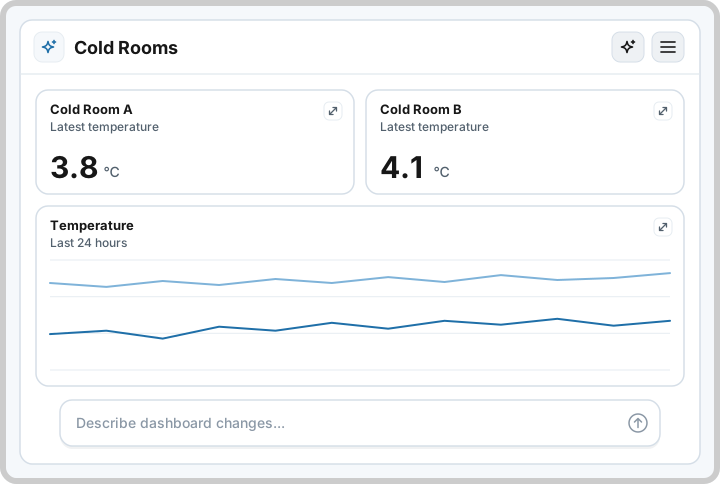
Generation runs on the model you picked for AI Dashboards and on your billing mode, as in Admin. Run users never see models, billing, or credits. When a generation can't run, the user sees one of these:
| Message in TagoRUN | Cause |
|---|---|
| You can't edit this dashboard | The user lost AI dashboard generation or AI → Access while the page was open. |
| Generating isn't available | AI is off for the portal or the profile, or a paid model has no AI credits left. |
| Usage limit reached | The portal used its TagoRUN AI requests allowance. See Quotas and billing. |
| Still generating | A generation, restore, or reset is still running on this dashboard. Try again when it finishes. |
| Too many requests | Too many requests in a short time. Wait a moment, then try again. |
Set it up
- Generate the main dashboard. See Creating AI Dashboards and Generating AI Dashboards with Prompts.
- Grant Run users the permissions in Permissions for Run users: view access for everyone who should open the dashboard, and AI dashboard generation for the users who should prompt.
- Open the dashboard menu, pick Dashboard settings, and set Personalized dashboards.
- Sign in as one Run user, open the dashboard, and ask for a small change, such as a new chart. Then widen the policy to more users.
- With Personalized dashboards on, build each user's first dashboard from the User picker, or for all users at once with an Analysis.
Work on a user's dashboard in Admin
With Personalized dashboards on, the dashboard header in Admin has a User picker.

- You (Admin) comes first and is the main dashboard.
- Below it are the Run users who can open the dashboard, by name and email. Can edit marks users who can prompt. No dashboard yet marks users without a personal dashboard.
- Search filters the list by name or email.
Pick a user to work on their personal dashboard:
- Preview it. You see the user's dashboard filled with the data of the devices that user can access. The address bar keeps the selection as
user=<id>. - Prompt on their behalf. The prompt bar and the AI chat build or edit only that user's dashboard, under that user's device access.
- Go back to an earlier version. Pick Restore version in the dashboard menu. The list shows only that user's versions, and restoring changes only their dashboard.
- Start them over. Once the user has a personal dashboard, the dashboard menu shows Reset [name]'s dashboard. It removes their personal dashboard and brings them back to the main dashboard, or to an empty dashboard when Personalized dashboards is on. To undo a reset, restore one of their earlier versions. See Reset a personal dashboard.
You can prompt for a user while AI Chat is not enabled for the portal, and for users without AI dashboard generation. Use this to try your rules on a user's real devices before you let users edit.
With the toggle off, Admin has no picker. Work on a user's personal dashboard through the API with run_user, or ask the TagoAI Chat in Admin. List Run Users of an AI Dashboard returns has_dashboard and can_edit on any AI Dashboard.
Can edit and can_edit are true only when the user holds AI dashboard generation and AI → Access, AI Chat is enabled for the portal, and AI is enabled for the profile.
The picker lists the active Run users that an Access Management policy grants Dashboard → Access to this dashboard, whether the policy matches them by ID, by tag, or with an Any target. Inactive users, users with a deny rule on the dashboard, and the Anonymous User do not appear.
Reset a personal dashboard
A reset removes a user's personal dashboard and returns the user to where users without one start: the main dashboard with Personalized dashboards off, or an empty dashboard with it on.
- Nothing is lost. The versions stay, and the reset is saved as a version of its own with who did it. Restoring an earlier version brings the personal dashboard back. Restoring the reset's version resets again.
- Who can reset. The Run user resets their own, which needs AI dashboard generation. You or an Analysis reset any user's.
- One write at a time. A reset is refused while the dashboard is generating, restoring, or resetting. Try again when that finishes.
- Nothing to reset. Resetting a user who has no personal dashboard succeeds and saves no version.
| Who | How |
|---|---|
| Run user | Reset to the original in the dashboard menu in TagoRUN, or ask the TagoRUN AI Chat to start over. |
| You | Reset [name]'s dashboard in the Admin dashboard menu with the user picked, ask the TagoAI Chat, or call Reset an AI Dashboard Copy. |
| An Analysis | Reset an AI Dashboard Copy with run_user. |
The API calls a personal dashboard a copy. To restore a version from code, use List Dashboard Versions and Restore Dashboard Version with run_user.
Build dashboards with an Analysis
An Analysis can build a first personal dashboard for every user at once, so users open a ready dashboard instead of an empty one. The Analysis lists the Run users of the dashboard, then generates for each one that has none.
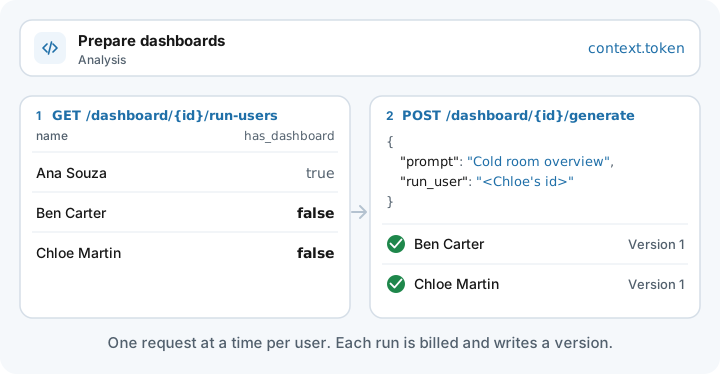
- Call List Run Users of an AI Dashboard. Each row has the user's
id,name,email,has_dashboard, andcan_edit. - For each user with
has_dashboard: false, call Generate AI Dashboard with apromptand the user's ID asrun_user. - Wait for each request to finish before you send the next one for the same user. A generation times out after 120 seconds.
Don't retry a generation blindly after a timeout. Each run is billed and can save a version, so check has_dashboard again first.
Use the token the Analysis receives when it runs, context.token, as is. The Analysis's Access Management policy needs the Dashboard rules in Permissions for an Analysis.
Troubleshooting
| Symptom | Likely cause and fix |
|---|---|
| No prompt bar and no AI button in TagoRUN | AI Chat is not enabled for the portal, or the user lacks AI dashboard generation or AI → Access. See Permissions for Run users. |
| "Your dashboard isn't ready yet" | The Personalized dashboards setting is on, and the user has no personal dashboard and can't prompt. Build one from the User picker, or grant AI dashboard generation. |
| A user lacks the Can edit badge | One of the conditions for editing is missing. See Work on a user's dashboard in Admin. |
| An API call to generate or restore answers "Authorization denied" | The user lacks AI → Access or AI dashboard generation on this dashboard. |
| The chat says no devices are available | The user lacks AI → Read device data, or the devices lack AI access for this user. See AI Chat in TagoRUN. |
| Widgets show No data in this range | The user lacks Device → Dashboard access to the devices, the period is too narrow, or the generator named a variable that doesn't exist. Grant access, or ask for the widget to be fixed. |
| A user is missing from the User picker | The user is inactive, has no Dashboard → Access to this dashboard, or a policy denies it. |
| No User picker in Admin | The Personalized dashboards setting is off. Turn it on, or work through the API or the TagoAI Chat. |
| A user still sees their old dashboard after you changed the main dashboard | Personal dashboards don't follow later changes to the main dashboard. Reset it to pick up your layout. |
API reference
In the API, the toggle is the per_user field, the rules are ai_instructions, and a personal dashboard is a copy.
- Create Dashboard and Edit Dashboard: set
per_userandai_instructions. - Dashboard Information: read
per_userandai_instructions. - Generate AI Dashboard: build or edit the main dashboard, or a Run user's personal dashboard with
run_user. - Generate an AI Dashboard as a Run User: a Run user's prompt and conversation, sent with the user's own token. It never acts on another user's dashboard.
- List Run Users of an AI Dashboard: who can open the dashboard, whether they have a personal dashboard, and whether they can edit it.
- List Dashboard Versions and Restore Dashboard Version: the versions of the main dashboard or, with
run_user, of a user's personal dashboard. - Reset an AI Dashboard Copy: start a user's personal dashboard over.