Script Editor
With the script editor, developers can create and edit their own scripts at TagoIO. These scripts are executed according to the configuration defined in the Analysis section.
To use the script editor, go to Analysis, then create or edit an analysis. Set the name, runtime version, and choose to run it at TagoIO.
The editor tab is only shown when you choose to run the script at TagoIO.
By clicking on the Analysis, you can open the editor. Here are some of the options you can find:
- Upload scripts from your local machine
- Change the maximum runtime of the script
- Choose from one of our snippet examples
- Directly edit the script, environment variables, and more...
For a Luau Analysis, the editor knows the built-in functions: typing Devices., Date., context., or device: lists what is available, an open parenthesis shows the parameters, and hovering a name shows its signature and a short description.
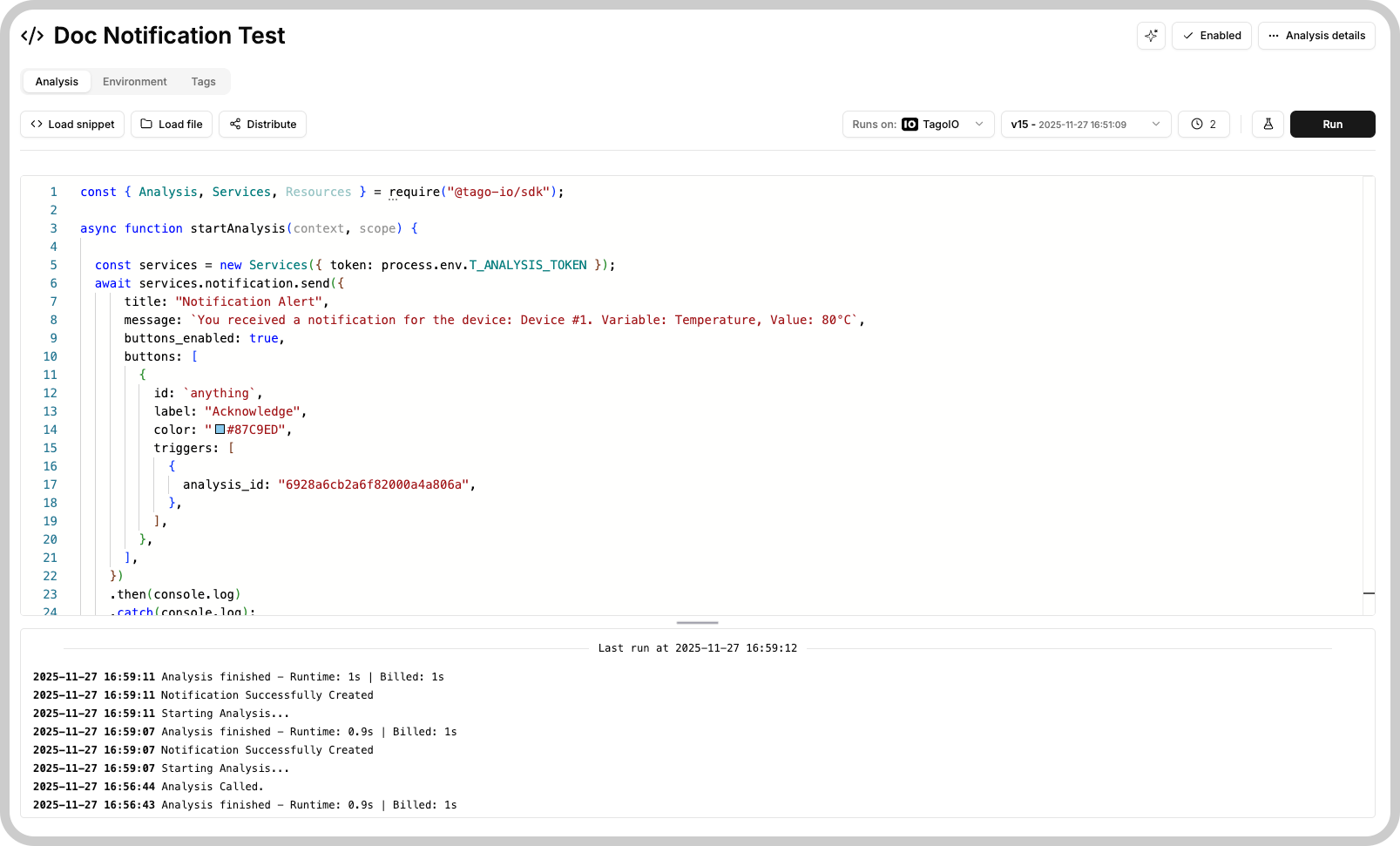
When you save the script, it will be deployed on TagoIO servers. You can then click Run to execute it immediately and view the results in the console below.
To learn more about our examples, you can visit our Script Examples article, or access the Analysis, click on the "+ Add Analysis" button in the top right corner, and select a code example.
TagoAI Assistant
The TagoAI Assistant helps you write, debug, and generate code for your Analysis scripts. You can open it by clicking the star-shaped TagoAI button in the top-right corner of the script editor.
For an overview of the assistant, available modes, and privacy controls, see TagoAI.

The assistant lets you:
- Ask questions about your current script.
- Get help writing or improving code.
- Debug issues by asking about errors or unexpected behavior using the Analysis console.
- Generate script snippets tailored to your needs.