Creating Analysis
Creating your own analysis is easy. First, click on Analysis in the sidebar, then click the + New Analysis button in the upper‑right of the Analysis main screen. Enter a name and configure the options described below to create your analysis.
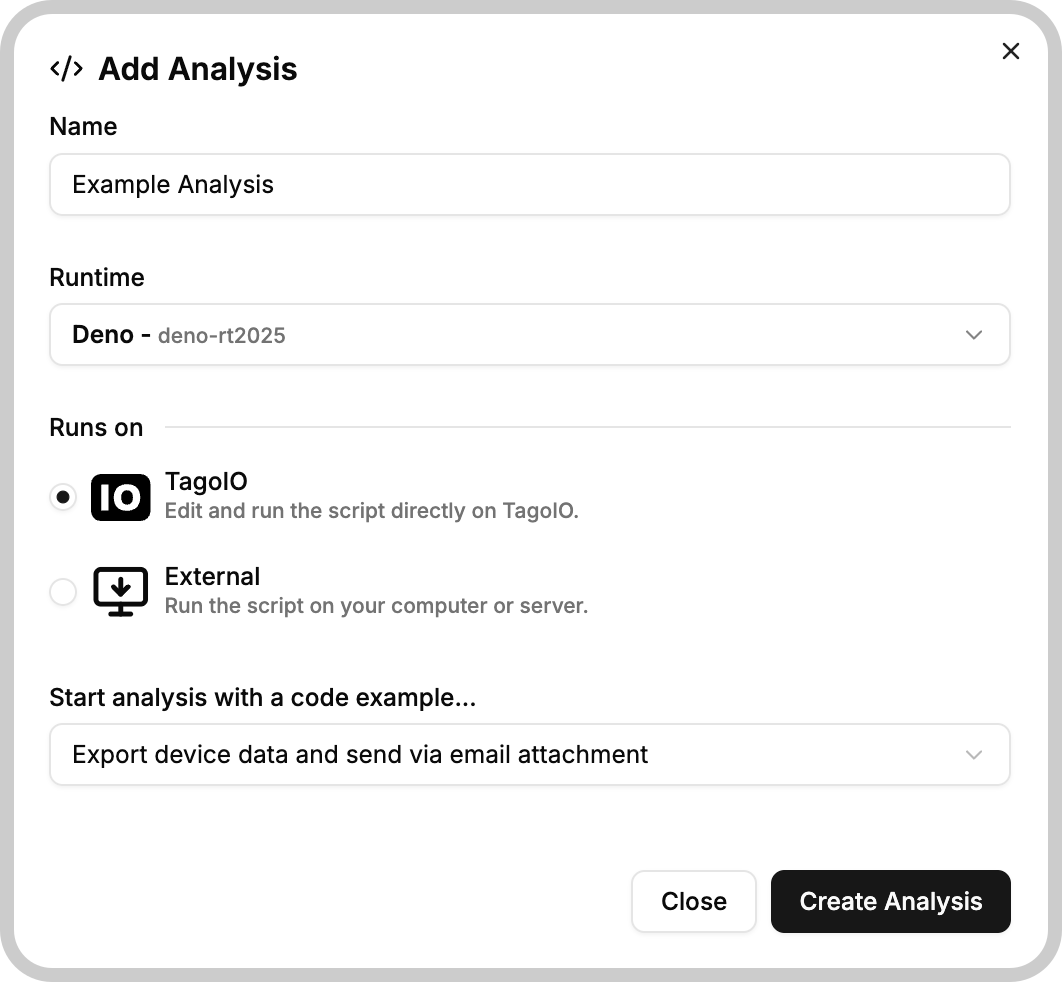
Name
This is the identifier for your analysis. You can use whitespace, numbers, and any other characters in this field. Choose a descriptive name that explains the purpose of the code.
Runtime
Select the runtime for your analysis. Each entry shows the language and the runtime code, for example:
- Deno - deno-rt2025
Scripts that run on TagoIO use Bun (bun-rt2026), Deno (deno-rt2025), Node.js (node-rt2025), Python (python-rt2025), or Luau (luau-rt2026). Scripts in any other language use other and run externally. See Analysis Runtimes for the differences and the deprecated node-legacy and python-legacy options.
Switching an existing Analysis to Luau removes its Analysis Token. Check for external processes or integrations that depend on that token before changing the runtime.
Switching from Luau to another runtime generates a new token; it does not restore the previous token.
Runs on
Choose where the analysis will run:
- TagoIO: Edit and run the script directly on TagoIO.
- External: Run the script on your computer or server.
Luau runs on TagoIO only, so the External option is not available for it.
If you select the external option, we provide the following SDKs so you can run the analysis directly from your machine:
- Python SDK
- Javascript SDK for Bun, Deno, and Node.js
Switching between External and TagoIO execution generates a new Analysis Token. Update any external process or integration that uses the token before resuming execution.
Code example
You can optionally start your Analysis from a code example template. The Add Analysis dialog includes a dropdown to choose a code example. If you don't want a template, you can ignore this field.
It is highly recommended for beginners to use an Analysis template, as it provides insight into the functions and scopes of the script. You can only select one of these code examples if you are running your script on TagoIO.
Other fields
After creating the analysis you can open the Script Editor to add and manage the analysis code, adjust environment variables, and configure distribution or external execution as needed.