Image Widget
The Image widget provides the ability to present custom images in your dashboard. You can use it to display a company or customer logo, or any image that helps users better visualize your application.
1. Image Behavior
Image behavior defines where the image URL comes from. There are three types of image behavior: static, conditional, and dynamic.
You can use TagoIO's file system to store the image and cache the public URL (TagoIO Admin: File System).
1.1 Static
It displays the image from a static URL.
1.2 Conditional
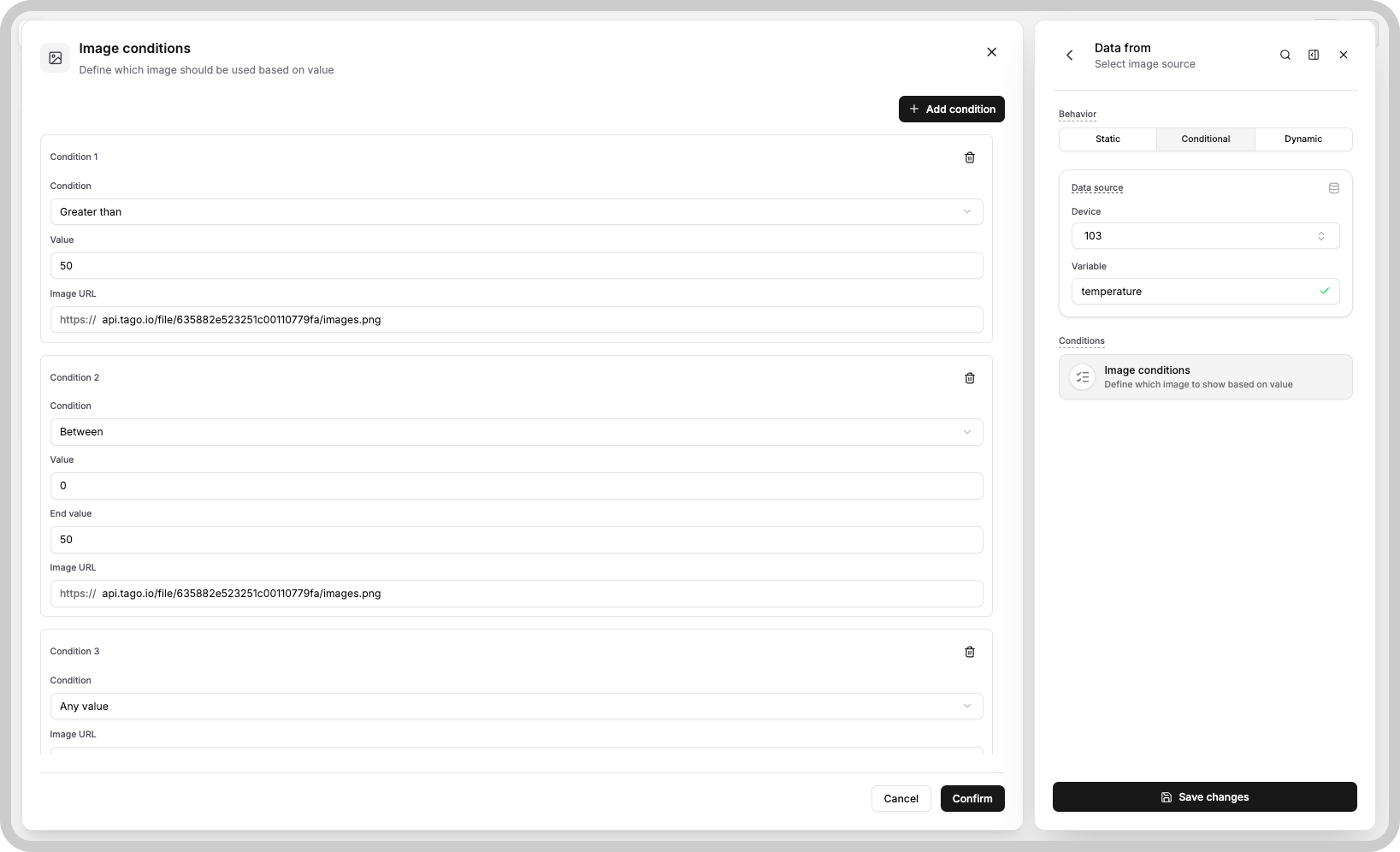
Creates conditions, where each condition will have an image URL associated with it, and if the variable linked in the Data Sources field satisfies this condition, this image will be displayed.
1.3 Dynamic
For dynamic image behavior, the widget will use the value of the selected variable as the image URL. To display your image dynamically, simply store the file's URL in the value of the variable. When the variable updates, the widget will automatically display the image from that URL.
2. 'Data Sources' Field
The conditional and dynamic behavior has a Data Sources field to set the device and variable that will be used.
This field is dependent on the type of dashboard you are using; the difference is explained below.
2.1 'Data Sources' for Normal Dashboards
From the option Data Sources on the right menu, select one device from your list of devices and the variable that contains the data.
2.2 'Data Sources' for Blueprint Dashboards
From the option Data Sources on the right menu, add the Blueprint device and input the name of the variable that contains the information.
When using a Blueprint dashboard, the field Variable will suggest a list of variables to be picked using the first blueprint device it finds using the tags set for your Blueprint Device.