Using TagoAI
This page walks you through the TagoAI interface — how to start a conversation, reuse previous ones, and choose how much the assistant is allowed to change on your behalf.
Starting a chat
Open TagoAI from the star icon in the sidebar, or from the top bar of the Analysis and Dashboards pages. You can start a new chat at any time using the New Chat button.
Each chat keeps its own history, so you can split unrelated tasks into separate conversations and come back to them later.
Context awareness
TagoAI receives telemetric information about the page you are currently on. If you open it from a dashboard, it knows which dashboard you are looking at. If you open it from an analysis, it sees the script you are editing.
This means you can ask things like "why is this widget empty?" or "refactor this function to handle missing payloads" without pasting context yourself.
Expanding and retracting the panel
The chat panel sits on the right side of the Admin. Use the expand control in the top-right corner of the panel to give the chat more room, or collapse it when you need the full screen for your work.
Chat history
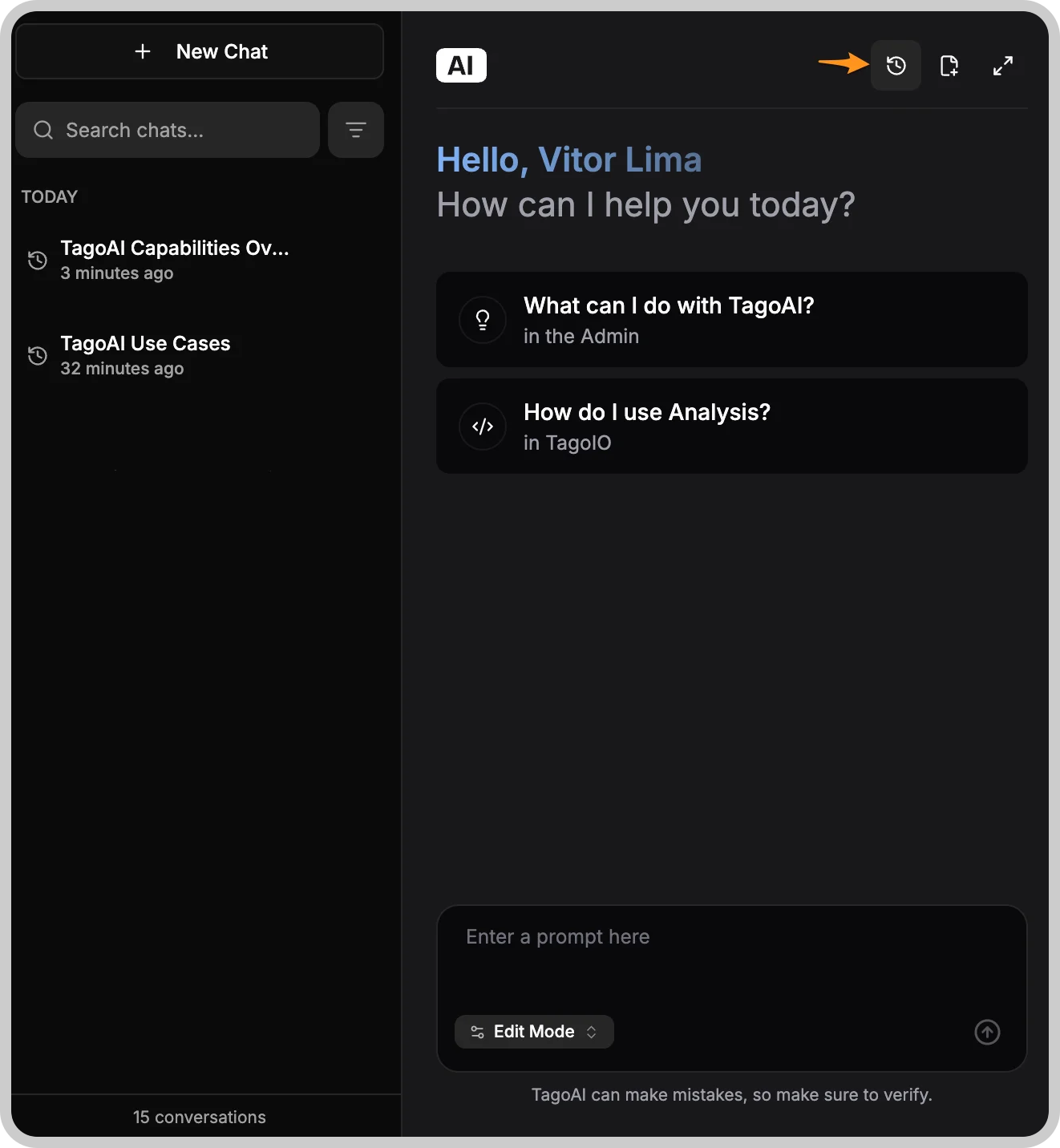
TagoAI keeps your previous chats so you can revisit what you asked before. The history panel groups chats by recency and lets you search across them.
Chat history is capped at 20 chats per profile. When you reach the limit, the oldest chat is deleted first as new ones are created. If you want to preserve a conversation long-term, copy the relevant parts out before it rolls off.
Modes
TagoAI has three modes that control what it is allowed to do on your platform. You can switch modes from the bottom of the chat panel before sending a message.
Read
Read mode only fetches information. TagoAI can list your devices, inspect dashboards, review Analysis scripts, and read data — but it will not create or change anything.
Use Read when you are exploring, asking questions, or want to be sure the assistant will not touch your resources.
Write
Write mode allows TagoAI to edit existing resources and create new ones. It can draft an Analysis script, build a dashboard, register a device, or update an Action.
Write mode does not delete anything. It is the recommended mode for most day-to-day work.
Full
Full mode adds deletion to what Write mode already allows. TagoAI can remove devices, dashboards, analyses, and other resources as part of completing a task.
Full mode can delete resources in your profile. Deletions in TagoIO are not recoverable from the Admin, so only use Full mode when you understand what you are asking for and have a recent backup if the data matters.
Tips for better results
- Be specific about the device, dashboard, or analysis you want to act on. Names and IDs help.
- Start in Read mode to confirm the plan, then switch to Write or Full to carry it out.
- Ask TagoAI to explain what it is about to change before it changes it if you want a safety net.
- Keep one task per chat so the history stays useful when you come back.