Logs
The Monitoring app's log is the record of everything the monitor does: each check it runs against a resource, each threshold it crosses, each action it runs, and each recovery. Use it to find out what Monitoring read, why a threshold triggered or was skipped, and whether an action succeeded or failed.
The Notifications card on Overview shows action results from the last 24 hours. Open Logs to inspect metric checks, threshold events, action results, and recoveries together.
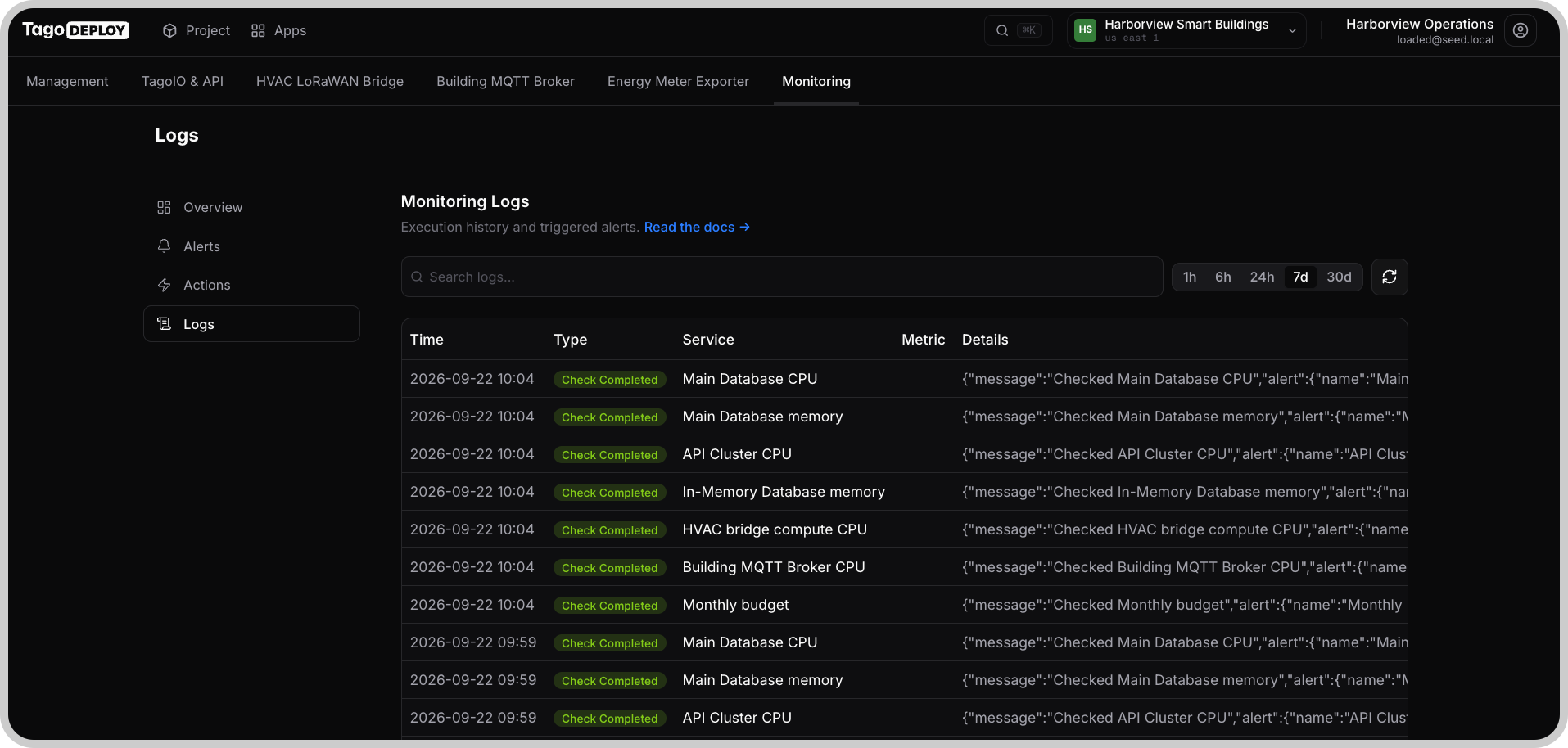
Entry types
Check Completed
Records a metric check for a rule. Enabled rules are checked every five minutes.
The details include:
metrics: values read for the resource, including metrics other than the one the rule evaluates.- The configured metrics and triggered thresholds.
- An error if Monitoring could not read the metric.
Use these entries to compare the value Monitoring evaluated with the configured threshold. A missing entry is a reason to investigate, but does not by itself identify the cause.
Threshold Crossed
Records threshold events and other rule lifecycle messages. A Threshold Crossed entry does not always mean an action ran. Read the details to distinguish between:
- A threshold triggering.
- A repeat notification from Repeat every.
- A crossing suppressed by cooldown.
- A threshold skipped because another threshold was selected.
- A disabled rule being skipped.
- A rule starting its checks.
- A configuration error that prevented a rule from loading.
For a threshold trigger, the details include thresholdConfig, with the
condition, severity, and actions, along with severity and triggerValue.
Action Triggered
Records an action run and its result. Inspect the details to identify the action and any reported error, such as an authentication failure or a failed webhook request.
An action's successful result does not necessarily confirm that the message reached its recipient. Also check the receiving system or notification provider when investigating delivery.
Alert Resolved
Records recovery when the metric no longer meets an active threshold's condition. The message identifies the value and threshold.
The alert is removed from Active Alerts on Overview. No action runs on recovery.
Troubleshooting
Start with the rule and the time of the unexpected behavior. Follow its entries from the metric check through the threshold event and action result.
An enabled rule has no Check Completed entries
- Confirm that Enabled is on.
- Look for Threshold Crossed entries associated with the rule, particularly configuration errors.
- Check that every threshold has at least one action, either assigned directly or inherited from Default actions.
- Correct any reported configuration error and save the rule.
- Check for a new Check Completed entry after the next evaluation.
The metric looks high, but no alert triggers
Open the relevant Check Completed entry and compare the recorded value with the threshold.
- Confirm that the rule watches the intended service, resource, and metric.
- Check the comparison direction. Greater than includes the configured value; Less than also includes it.
- Compare equivalent measurements. A chart's latest value or short spike may differ from the value Monitoring evaluates. See the Metrics reference for the metric's meaning and unit.
- Read nearby Threshold Crossed entries for cooldown suppression or a skipped threshold.
See Alerts for threshold evaluation and lifecycle behavior.
A threshold event appears, but no notification arrives
Look for an Action Triggered entry for the same rule and time.
| What you find | What to check next |
|---|---|
| A failed action | Read the error and check the corresponding credentials, destination, or request settings on the Actions page. |
| A successful action | Check the notification provider or receiving system for delivery or processing results. |
| No action entry | Read the Threshold Crossed details. The event may describe cooldown suppression, a skipped threshold, or another lifecycle message rather than an action run. |
For configuration details, see Actions.
Too many notifications arrive
Compare the rule, threshold, action, and time across the entries. Check for:
- Repeat every configured on the threshold.
- Multiple rules watching the same resource and metric.
- Several thresholds triggering as the condition changes.
- A metric repeatedly recovering and meeting the threshold again.
Adjust repeat settings if reminders are too frequent. For repeated recovery and retriggering, review the threshold against normal metric values and check the rule's cooldown setting.
An alert stays active
Read the latest Check Completed value. An alert resolves when the value no longer meets its threshold condition:
- Greater than 80 resolves below 80.
- Less than 80 resolves above 80.
If another page shows recovery but Monitoring does not, compare the measurement times and aggregation periods. Check for read errors rather than assuming the next check will resolve the alert.
Check Completed contains an error
Read the error before changing the rule. If it indicates missing metric data for a newly created resource, allow time for the first measurements and check again.
If the error persists, contact TagoIO support with the rule name, affected resource, entry time, and error message. Remove credentials and other sensitive information before sharing logs.
No new entries appear, and the project console is unavailable
Do not treat missing logs as evidence that resources are healthy. If Monitoring itself is unavailable, it may be unable to record checks or send notifications.
Check the project's availability and relevant service-health information. If the interruption persists, contact TagoIO support with the affected project and the time of the last recorded entry.
Use logs to investigate resource behavior
Review normal metric values
Use values from Check Completed entries to understand normal peaks and lows before adjusting thresholds. Include periods that represent the resource's usual workload.
These entries come from enabled rules. Reviewing them helps refine existing thresholds; it does not provide a baseline before any rule has run.
Trace an incident
Follow the sequence of entries for each affected threshold:
- Check Completed shows the value Monitoring evaluated.
- Threshold Crossed explains the threshold event.
- Action Triggered shows which actions ran and their recorded results.
- Alert Resolved records when Monitoring detected recovery.
Use this sequence to distinguish the observed condition, the notification attempt, and the recovery. An action result alone does not establish who received or read a message.