Actions
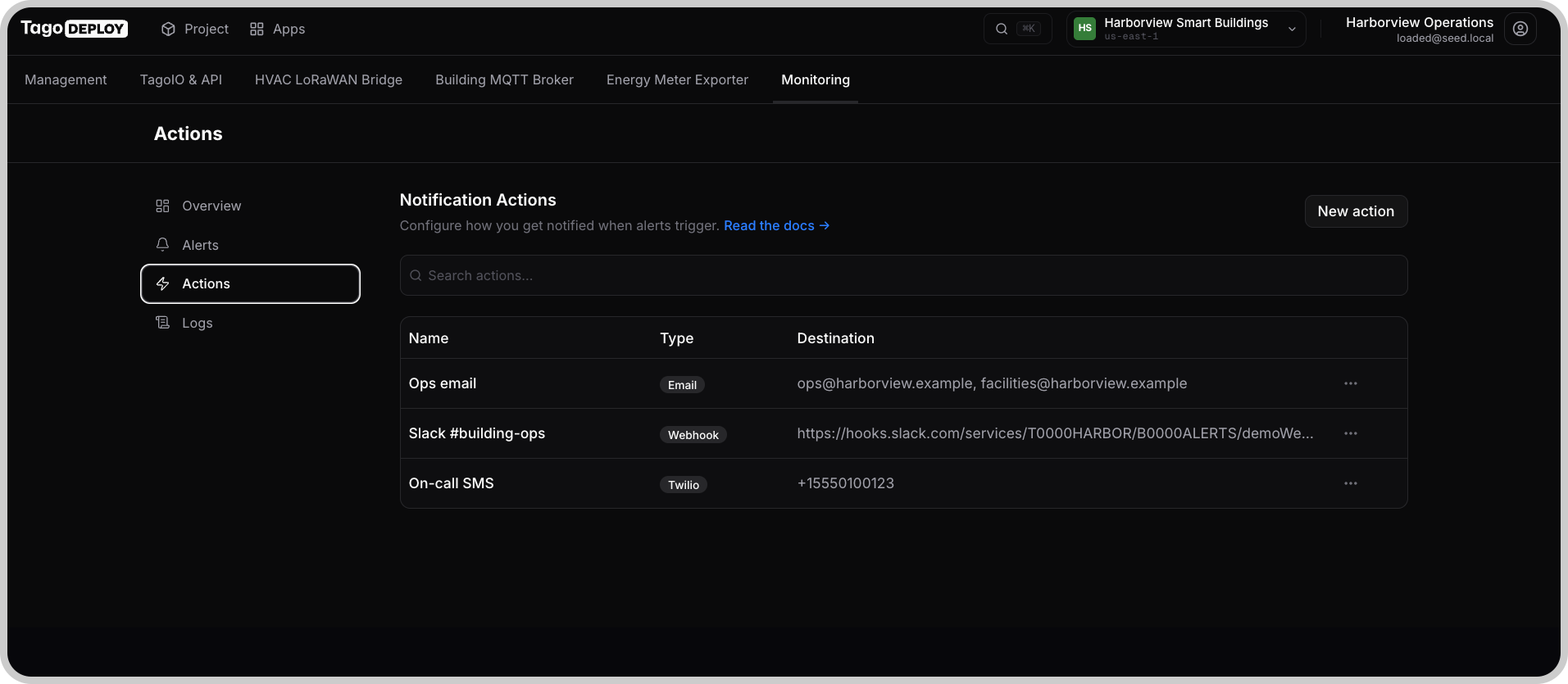
Actions send email, SMS messages, or HTTP requests when an alert threshold triggers. Actions are reusable, define one and point any number of rules or thresholds at it.
Use the Actions page to create and edit actions. After configuring an action, assign it to an alert rule as a default action or to a specific threshold.
Action types
Choose the type based on where you want to send the notification:
| Type | Destination | What you need |
|---|---|---|
| Individual recipients or a shared inbox | SendGrid credentials or SMTP server settings | |
| Webhook | An HTTP endpoint for notifications or automation | The endpoint URL, request format, and any required authentication |
| SMS (Twilio) | Phone numbers | Twilio credentials and a sending number |
Keep API keys, authentication tokens, passwords, and private webhook URLs out of message templates, screenshots, and public repositories.
Email
Choose a Provider, then configure the sender, recipients, and message.
| Field | Description |
|---|---|
| From Address | Sender address used by the selected provider. |
| To Addresses | One or more recipients. |
| Subject | Email subject. Supports message variables. |
| Body | Email content. Supports message variables. |
SendGrid
Enter the SendGrid API Key from your SendGrid account. Use a From Address verified for sending through SendGrid.
SMTP
Use the connection settings supplied by your mail server administrator or SMTP provider.
| Field | Description |
|---|---|
| SMTP Host | Hostname of the SMTP server. |
| Port | Port used by the server. |
| Secure connection | Enable for implicit TLS, where encryption starts as soon as the connection opens, typically on port 465. Leave off for a connection that upgrades through STARTTLS, typically on port 587. |
| Username and Password | Authentication credentials, when required. Set both or neither. |
Match Secure connection to the server's connection mode, not just its port number. Confirm the server's encryption requirements before configuring the action.
Webhook
Use a webhook to send an HTTP request to another system.
| Field | Description |
|---|---|
| URL | Destination endpoint. Use HTTPS when sending credentials or sensitive alert data. |
| Method | GET, POST, or PUT, as required by the endpoint. |
| Authentication | None, Basic, or Bearer. Basic uses a username and password. Bearer sends the token as Authorization: Bearer <token>. |
| Body format | JSON or Text. Choose the format the endpoint accepts. |
| Body | Request payload. Supports message variables. |
JSON and text bodies
With JSON, enter a valid JSON object. Put message variables inside string values:
{
  "text": "[{severity}] {serviceName}: {metricName} at {metricValue} crossed {thresholdName} at {timestamp}"
}
Monitoring substitutes the variables and adds these fields to the object:
resourceIdmetricNamedisplayNamemetricValue, as a numberthresholdNametimestampserviceNameserviceType
The request uses the application/json content type.
With Text, Monitoring substitutes the variables and sends the body as
text/plain.
Check the receiving endpoint's payload requirements before using JSON format. Monitoring adds fields to the object, which may be incompatible with endpoints that accept only a fixed set of fields.
Slack
Create an incoming webhook for the target channel using Slack's incoming webhook instructions.
The Slack request uses POST and a JSON body with a text field:
{
  "text": "[{severity}] {serviceName}: {metricName} at {metricValue} crossed {thresholdName} at {timestamp}"
}
Use the incoming webhook URL as the action's URL. Before using the action for operational alerts, verify that Slack accepts the complete payload, including the fields Monitoring adds.
Google Chat
Create a webhook for the target space using Google Chat's webhook instructions.
Google Chat uses POST and a JSON body with a text field:
{
  "text": "[{severity}] {serviceName}: {metricName} at {metricValue} crossed {thresholdName} at {timestamp}"
}
Verify compatibility with the fields Monitoring adds before configuring a direct connection. If the endpoint rejects those fields, use an intermediary endpoint that forwards only the fields Google Chat accepts.
Your own endpoint
Configure the method and authentication required by your service. For a JSON request, add the fields your service expects and account for the fields Monitoring appends.
For example, the text template above produces a payload like this:
{
  "text": "[critical] Main Database CPU: cpuUtilization at 92.4 crossed Critical at 2026-09-21T14:05:00.000Z",
  "resourceId": "arn:aws:rds:us-east-1:123456789012:db:example",
  "metricName": "cpuUtilization",
  "displayName": "cpuUtilization (Critical)",
  "metricValue": 92.4,
  "thresholdName": "Critical",
  "timestamp": "2026-09-21T14:05:00.000Z",
  "serviceName": "Main Database CPU",
  "serviceType": "rds"
}
Use an endpoint you control to process the alert or start an automation workflow. Match its authentication and payload requirements to the webhook settings.
SMS (Twilio)
SMS actions send messages through Twilio. The Actions list shows their type as Twilio.
| Field | Description |
|---|---|
| Twilio Account SID | Account identifier from your Twilio console. |
| Twilio Auth Token | Authentication token from your Twilio console. |
| From Number | Your Twilio sending number. |
| To Numbers | One or more recipients in international format, such as +14155552671. |
| Message Template | SMS content. Supports message variables. |
Keep the message concise. Include enough information to identify the rule, threshold, and observed value without relying on the recipient opening Monitoring.
Message variables
Use these variables in email subjects and bodies, SMS message templates, and webhook bodies. Monitoring replaces them when the action runs.
| Variable | Value | Example |
|---|---|---|
{serviceName} | Alert rule name | Main Database CPU |
{serviceType} | Monitored resource type | rds |
{metric} | Metric name with the threshold name | cpuUtilization (Critical) |
{metricName} | Metric name | cpuUtilization |
{metricValue} | Metric value associated with the trigger | 92.4 |
{thresholdName} | Threshold name | Critical |
{severity} | Threshold severity in lowercase | critical |
{timestamp} | Trigger time in UTC | 2026-09-21T14:05:00.000Z |
The {serviceType} values identify these resources:
| Value | Resource |
|---|---|
rds | Main Database |
ecs | API Cluster or an app's Compute |
elasticache | In-Memory Database |
pricing | Billing |
{serviceName} contains the alert rule name, not the
Service selected in the rule's data source.
Unknown {placeholder} values are removed from the message. Use only the
supported variables listed above.
There is no variable for the project name or project link. If you monitor
several projects, add the project or customer name directly to the message,
or include it in the rule name supplied by {serviceName}.
Email example
Subject:
[{thresholdName}] {serviceName}: {metricName} at {metricValue}
Body:
{metric} on {serviceName} crossed the {thresholdName} threshold.
Current value: {metricValue}.
Severity: {severity}.
Time: {timestamp}.
For a rule named "Main Database CPU" with a Critical threshold triggered at 92.4%, the subject is:
[Critical] Main Database CPU: cpuUtilization at 92.4
Connect an action to an alert
Actions run only when assigned to an alert rule.
- Configure the action on the Actions page.
- Open the alert rule.
- Select the action in Default actions to use it for thresholds without their own actions, or select it in a threshold's Actions field.
- Save the rule.
Threshold-specific actions replace the default actions. To notify the default recipients and additional recipients, select all required actions on that threshold.
Verify the result
After the threshold triggers, open Logs and inspect the Action Triggered entry for the recorded outcome and any error.
Also confirm that the message reached the intended inbox, phone, or receiving system. A successful action request does not by itself establish that a recipient received or read the notification.