Alerts
An alert rule monitors one metric on one resource and runs actions when the value meets a threshold. Use multiple thresholds to notify different recipients as a condition becomes more severe.
A rule defines what Monitoring evaluates. An active alert records a triggered threshold. Several thresholds in the same rule can have active alerts at the same time.
Open Alerts in the Monitoring sidebar to create, edit, enable, disable, or delete rules.
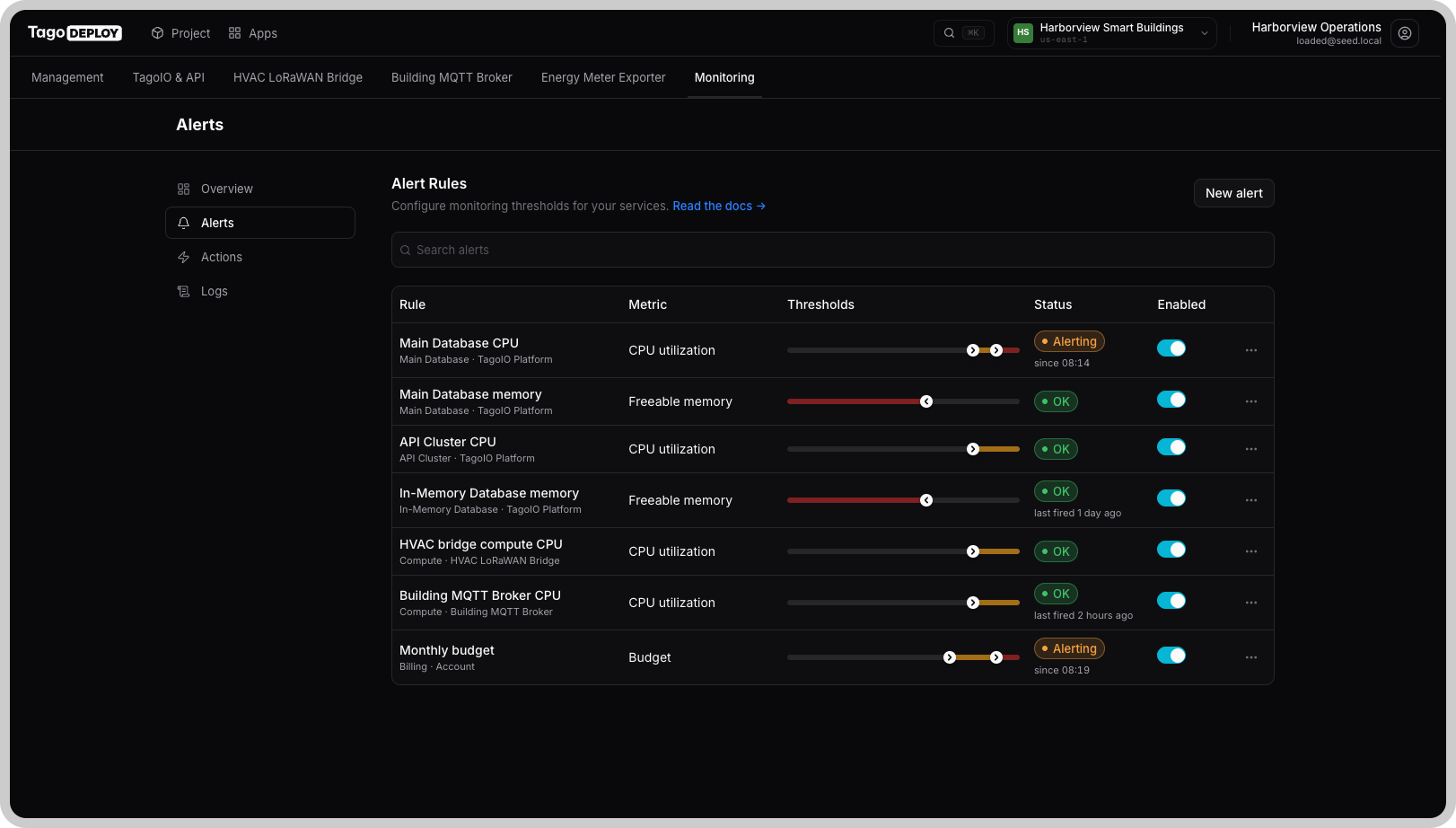
Create an alert rule
Click New alert, then configure General, Data Source, and Thresholds.
Every threshold must have at least one action, either assigned directly or inherited from the rule's default actions.
Changes take effect shortly after saving. No project deployment is needed.
General
| Field | Description |
|---|---|
| Name | Identifies the rule in Alerts and Logs. Available in notification templates as {serviceName}. Use a resource and metric name, such as "Main Database CPU". |
| Enabled | Controls whether Monitoring checks the rule. |
| Default actions | Actions used by thresholds that have no specified actions of their own. |
| Cooldown (seconds) | Controls how soon the same threshold can trigger again. The default is 300 seconds. Cooldown is separate from Repeat every, which controls reminders while an alert remains active. |
Data Source
Select Service, Resource, and Metric in that order. Each selection determines the available choices in the next field.
| Field | Description |
|---|---|
| Service | Select TagoIO Platform, an installed app, or Account. |
| Resource | Select a resource available for the chosen service, such as Main Database, Compute, or Billing. |
| Metric | Select the measurement to evaluate for that resource. See the Metrics reference for metric descriptions and units. |
Budget alerts
Select Account → Billing → Budget, then enter an amount in Budget (USD). Threshold values represent percentages of that amount.
For example, with a budget of 2,000 USD, a threshold of 50% corresponds to 1,000 USD in month-to-date spending.
Budget alerts evaluate accumulated monthly spending, rather than utilization during a five-minute window.
Thresholds
Click New threshold for each level you need.
| Field | Description |
|---|---|
| Severity | Info, Warning, Error, Critical, or OK / Success. Sets the slider color, supplies {severity} in notification templates, and appears in Logs. It does not change threshold evaluation. |
| Name | Identifies the threshold in Logs and Overview. Available in notification templates as {thresholdName}. |
| Trigger condition | Greater than (>) for an upper limit, such as CPU utilization; Less than (<) for a lower limit, such as freeable memory. |
| Value | The metric value that triggers the threshold. Use the metric's unit. For Budget, enter a percentage of Budget (USD). |
| Repeat every (seconds) | Runs actions again at the configured interval while the alert remains active. Leave empty to notify once for that active alert. |
| Actions | Actions assigned to this threshold. These replace, rather than supplement, the rule's default actions. Leave empty to use the defaults. See Actions for action settings and notification template variables. |
Greater than includes the configured value (≥). Less than also includes the configured value (≤).
Adjust threshold values on the slider
The slider displays all thresholds on the metric's scale. Drag a marker or enter a value directly.
Percentage metrics use a scale from 0 to 100. For other metrics, use Increase max range and Decrease max range to adjust the displayed range.
Choose threshold names
Use names that make notifications and Logs easy to interpret, such as "Warning", "Critical", or "Half budget".
How alerts run
Monitoring evaluates rules every five minutes. The value being evaluated depends on the metric. Budget, for example, uses month-to-date spending rather than a five-minute utilization measurement.
Each threshold can trigger, remain active, and recover independently, subject to the selection behavior described below.
- Check. Monitoring reads the metric and records a Check Completed entry in Logs.
- Trigger. When an eligible threshold triggers, Monitoring runs its actions and records Threshold Crossed and Action Triggered entries. The alert appears under Active Alerts on Overview.
- Remain active. The alert stays active while the value meets the threshold condition. Actions do not run again unless Repeat every is configured.
- Recover. When the value no longer meets the threshold condition, Monitoring records Alert Resolved and clears the active alert. No action runs on recovery.
For a Greater than 80 threshold, recovery occurs below 80. For a Less than 80 threshold, recovery occurs above 80.
Cooldown affects when the same threshold can trigger again. Repeat every controls reminders for an alert that is already active.
When several thresholds match
When a value crosses multiple thresholds in the same check, only the threshold nearest to the value runs its actions. The other crossed thresholds are recorded in Logs as skipped.
For a CPU rule with Greater than 80 and Greater than 90 thresholds:
| Successive evaluated CPU values | Result |
|---|---|
| Below 80% → 95% | Critical actions run. Warning is logged as crossed but skipped. |
| Below 80% → 83% → 92% | Warning actions run at 83%, then Critical actions run at 92%. |
| 92% → 85% → 75%, with both alerts active | Critical resolves at 85%, then Warning resolves at 75%. Each recovery is logged separately. |
These sequences describe values observed during Monitoring checks, not every change between checks.
Examples
Escalating database CPU
Create a rule with these settings:
| Setting | Value |
|---|---|
| Name | Main Database CPU |
| Default actions | Ops email |
| Cooldown (seconds) | 600 |
| Service | TagoIO Platform |
| Resource | Main Database |
| Metric | CPU utilization |
Add two thresholds:
| Name | Severity | Trigger condition | Value | Actions |
|---|---|---|---|---|
| Warning | Warning | Greater than | 80 | Leave empty to use Ops email |
| Critical | Critical | Greater than | 90 | Ops email and On-call SMS |
If successive checks read 83% and then 92%, the Warning threshold sends an email first. The Critical threshold then sends an email and an SMS.
The Critical threshold explicitly includes both actions because its Actions replace the defaults.
If subsequent checks read 85% and then 75%, Critical resolves first, followed by Warning. Monitoring records each recovery without sending a recovery notification.
Low freeable memory
For an In-Memory Database memory rule, select:
- Service: TagoIO Platform.
- Resource: In-Memory Database.
- Metric: Freeable memory.
Create a Critical threshold with Less than and assign a notification action. Choose the value after reviewing the resource's normal memory usage, and enter it in the unit shown in the Metrics reference.
Use a lower-bound condition because the problem is insufficient available memory. There is no single threshold appropriate for every resource.
Budget with daily reminders
Create a rule named "Monthly budget" with Account → Billing →
Budget, and set Budget (USD) to 2000.
| Name | Severity | Trigger condition | Value | Actions | Repeat every (seconds) |
|---|---|---|---|---|---|
| Half budget | Info | Greater than | 50 | Slack #alerts | Leave empty |
| Warning | Warning | Greater than | 80 | Ops email | Leave empty |
| Critical | Critical | Greater than | 100 | Ops email and On-call SMS | 86400 |
The thresholds correspond to spending of 1,000 USD, 1,600 USD, and 2,000 USD.
The Critical threshold requests reminders at a 24-hour interval while its alert remains active. The other thresholds notify once for each active alert. If one check crosses several thresholds, the selection behavior in When several thresholds match applies.
Designing useful thresholds
- Allow time to respond. Set warnings where the team can investigate before the condition becomes critical.
- Group levels in one rule. Use one rule per resource and metric, with thresholds for different levels of concern.
- Use observed values. Review representative usage before choosing thresholds. Upper-bound thresholds should account for normal peaks; lower-bound thresholds should account for normal lows.
- Choose actions by response. Use default actions for shared recipients. Override them when a threshold needs a different response.
- Separate reminders from retriggering. Use Repeat every when an unresolved condition needs recurring attention. Use Cooldown to control how soon the same threshold can trigger again.