Import & Export for Dictionary
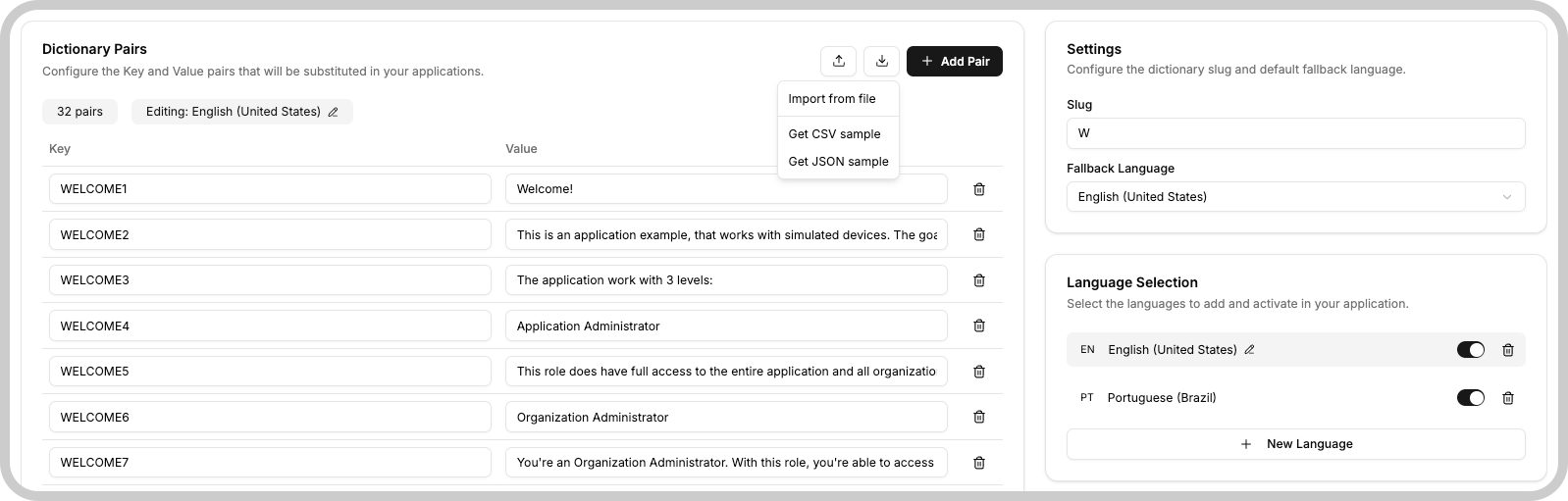
The Dictionary provides a quick and easy way to import and export a Dictionary's key/value pairs via the two buttons at the top of a Dictionary page.
Overview
All data in a Dictionary can be exported into a CSV or JSON file. Exported files are useful for:
- Editing in another program (such as Excel or another editor)
- Sending for translation to another language by keeping the keys and editing only the values
- Keeping a backup to revert any changes to a known state
info
The import and export functionality is available for users in the Scale plan.
Exporting a Dictionary
- Use the Export button at the top of the Dictionary page to download all key/value pairs as a CSV or JSON file.
- Choose CSV or JSON based on how you plan to edit or process the data.
Importing a Dictionary
- A CSV or JSON file can be imported into a specific language in the Dictionary after being edited (e.g., translated).
- Importing will overwrite the values for all existing keys in the selected language.
- Any new keys and values present in the imported file will be added to the selected language.
Behavior when adding new keys
- When you add new keys to a language via import, the Dictionary will also add those keys with empty values to all other languages in the Dictionary.
CSV & JSON Samples
TagoIO provides sample CSV and JSON files accessible from the Import and Export buttons for convenience and reference. In the Dictionary UI the menu includes options such as:
- Import CSV
- Import JSON
- Get CSV sample
- Get JSON sample
CSV and JSON file requirements
CSV
- Can optionally contain a header if the first row has Key on the first column and Value on the second column.
- Only the first two columns will be used; values in other columns are ignored.
- The key should follow the same format as on the TagoIO Admin: all caps, no spaces (use underscores), only alphanumeric characters.
- When using a text editor to edit the file, it's preferable to enclose each field in quotation marks (e.g.
"SOME_KEY","Value for the key"). Quotation marks are required if the value contains a comma (e.g."SOME_KEY","Value for the key, extra content").
JSON
- Should be an array of objects containing a
keyand avalueonly; anything else is ignored. - The key should follow the same format as on the TagoIO Admin: all caps, no spaces (use underscores), only alphanumeric characters.
Something missing from this page?